
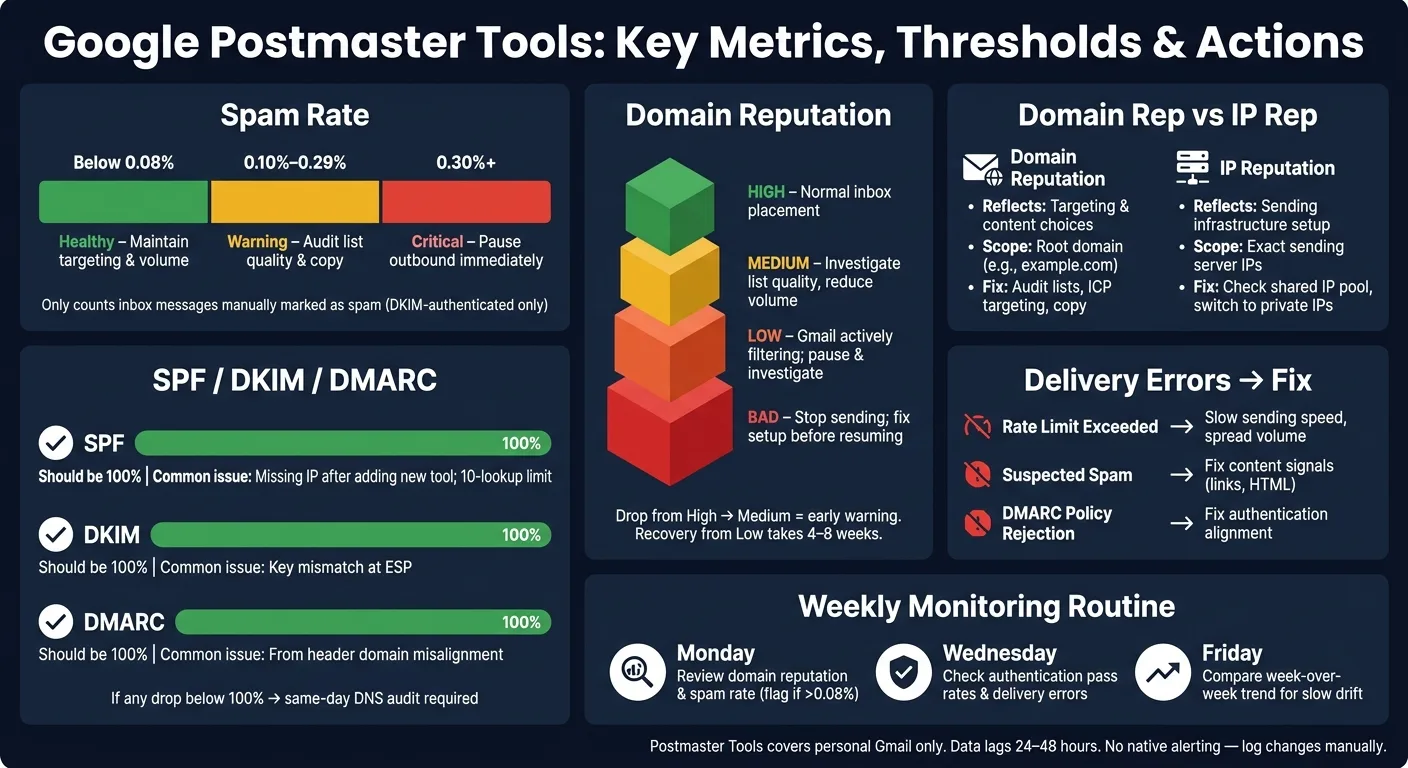
Google Postmaster Tools monitors five critical Gmail deliverability signals: spam rate, domain reputation, IP reputation, authentication, and delivery errors. Check weekly, act on trends above 0.10% spam rate or Medium reputation, and fix a
- Verify each sending domain with DNS TXT and send 100+ daily Gmail messages for data
- Treat spam rate above 0.10% as warning; 0.30%+ or Low reputation requires immediate pause
- Domain reputation reflects targeting and content; IP reputation reflects sending infrastructure
- Authentication failures point to DNS issues; fix SPF, DKIM, DMARC drops same day
- Check weekly for trends, not daily snapshots; recovery from Low reputation takes 4-8 weeks
- Postmaster Tools covers personal Gmail only, not Workspace, Outlook, or tab placement
Google Postmaster Tools for Domain Reputation
If Gmail starts to distrust your domain, your campaign can slip before your reply rate shows it. I’d use Google Postmaster Tools to watch 5 things: spam rate, domain reputation, IP reputation, authentication, and delivery errors.
Here’s the short version:
- Verify each sending domain or subdomain with a DNS TXT record.
- Send at least about 100 Gmail messages per day before data is likely to appear.
- Expect a 24–48 hour delay in reporting.
- Treat spam rate above 0.10% as a warning.
- Treat 0.30%+ spam rate or Low/Bad domain reputation as a stop sign.
- If SPF, DKIM, or DMARC drops below 100%, I’d check DNS the same day.
- Remember: Postmaster Tools covers personal Gmail only, not Outlook, Yahoo, or inbox tab placement.
What this means in plain English: if spam rate or domain reputation drops, I’d look at list quality, targeting, and volume. If authentication, IP reputation, or delivery errors change, I’d look at setup, DNS, and sending systems first.
This tool is best for trend watching, not one-day judgment. I’d check it weekly, log changes, and match each dip to what changed in my lists, copy, or sending setup.
How to set up Google Postmaster Tools correctly
Verify your domain with a DNS TXT record
Go to postmaster.google.com and sign in with your Google account. Click the "+" icon, enter your sending domain, and Google will give you a TXT record that looks like google-site-verification=[unique code].
Copy that value, then head to your DNS provider and add it as a TXT record. If you're verifying a root domain, set the host to @. After that, you may need to wait a bit. DNS changes can show up in a few minutes, or they can take a few hours.
Here’s the part people often miss: verify the domain that signs your mail or shows up in the return-path. And if you send from more than one domain or subdomain, verify each one on its own. That way, you can separate cold outreach from transactional mail instead of lumping everything together.
Once Google sees enough authenticated sending volume, Postmaster Tools will start showing Gmail-only reputation data.
How much Gmail traffic you need before data appears
Just verifying the domain isn’t enough. Gmail also wants to see steady sending volume before it shows any metrics.
A good rule of thumb is roughly 100 authenticated messages per day sent to personal Gmail accounts. This part matters: corporate Google Workspace inboxes - the ones many prospects use at work - do not count toward that threshold.
In most cases, the first data shows up within 24 to 72 hours after verification and after you hit the volume threshold. From there, the dashboard usually runs on a rolling 24–48 hour lag. So if you're checking today, you're mostly looking at yesterday’s sending behavior, not what happened this morning.
How to read each Postmaster Tools metric
Spam rate: what Gmail complaints measure
Spam rate is the share of your authenticated emails that landed in the inbox and were then manually marked as spam by recipients.
That last part matters. Messages filtered straight into Gmail's spam folder do not count here. So you can have a low spam rate and still have poor inbox placement. On paper, things may look fine. In practice, Gmail may already be sidelining your mail.
Spam rate data only shows up for DKIM-authenticated messages. If the chart is blank, start with two basic checks:
- Is DKIM set up and passing?
- Are you sending enough volume for Gmail to show data?
For cold outreach, a rising spam rate usually means something changed too fast. Often it's targeting, send volume, or the copy itself.
Google's official enforcement threshold is 0.10%. Once you hit 0.30% or higher, the risk of rejection jumps.
| Spam Rate | Status | What to Do |
|---|---|---|
| Below 0.08% | Healthy | Maintain current targeting and volume |
| 0.10%–0.29% | Warning | Audit list quality, targeting, and recent copy changes |
| 0.30% or higher | Critical | Pause outbound; fix root causes before scaling back up |
Don't look only at the raw number. The trend matters too.
A move from 0.03% to 0.06% in one week is still worth a closer look, even though it's below the 0.10% threshold. That kind of climb can be the first sign that Gmail users are reacting worse to your emails.
If spam rate goes up, check domain reputation next. That helps you see whether Gmail is also starting to trust your sending less.
Domain reputation versus sender-IP trust
Domain reputation shows how much Gmail trusts your sending pattern over time. It looks at things like complaint history, spam trap hits, and engagement patterns.
This is tracked at the root-domain level. So if you send from a subdomain like mail.example.com, Gmail still rolls those signals up to example.com.
| Reputation Tier | What It Means |
|---|---|
| High | Normal inbox placement; maintain current behavior |
| Medium | Investigate list quality and reduce volume |
| Low | Gmail is actively filtering your mail; pause and investigate |
| Bad | Stop sending and fix the setup before resuming |
A drop from High to Medium is not something to leave for later. Treat it like an emergency.
Why? Because that shift often shows up before complaint counts spike. In other words, it's an early warning sign, not a rearview mirror metric. And once a domain falls to Low, recovery usually takes 4 to 8 weeks of clean, low-volume sending.
IP reputation is different. It measures trust tied to the exact servers sending your email.
Here's the simple split:
- Domain reputation reflects your targeting and content choices
- IP reputation reflects your sending setup
So if IP reputation drops but spam rate doesn't spike, the issue may not be your campaign at all. Another sender on a shared IP pool could be dragging down deliverability.
If reputation looks steady but delivery still falls, the next place to look is authentication and delivery errors.
Authentication and delivery errors: whether Gmail can trust and accept your mail
Start with SPF, DKIM, and DMARC. If any of them dip, the problem usually points to DNS or alignment errors.
For a healthy domain, all three should be at 100%. If one falls below that, don't sit on it for a few days to "see what happens." Treat it as a same-day DNS audit.
Authentication failures usually come back to setup issues such as:
- A missing IP in SPF after adding a new sending tool
- A DKIM key mismatch at your ESP
- A DMARC alignment problem where the
Fromheader domain doesn't match the signing domain
There's also one easy-to-miss trap: the SPF 10 DNS lookup limit. If you go over it, you can get intermittent failures that are hard to spot unless you're looking for them.
Delivery errors sit on a different layer.
If you see rate limit exceeded errors, you're probably sending too fast. Pull back speed and spread volume across more inboxes.
If you see suspected spam errors, Gmail may be reacting to content signals, like aggressive links or heavy HTML.
If you see DMARC policy rejections, your mail likely isn't being signed the right way while your policy is set to p=quarantine or p=reject.
A good way to think about it:
Use Delivery Errors to spot DNS, throttling, and policy failures. Use spam rate and reputation to spot targeting and content problems.
That's the lens to use when deciding whether to pause volume, fix DNS, or adjust targeting before the next send.
How to Use Google Postmaster Tools
How to act on Postmaster Tools data during a live campaign
Act on the layer that changed. If the issue shows up in spam rate or domain reputation, the problem is usually your audience, targeting, or list quality. If it shows up in authentication or delivery errors, look at your setup first.
What to do when spam rate or domain reputation drops
If spam rate goes above 0.10% or domain reputation slips from High to Medium, pause your highest-volume sequences and review the last 14 days of targeting and list sources. In plain English: people either aren’t a fit, or they don’t recognize the email anymore.
That’s usually your cue to tighten ICP targeting and cut unengaged segments before you start sending again.
Treat Medium like an early warning light, not a place to sit comfortably.
If domain reputation has already fallen to Low or Bad, stop cold outreach completely. Send only to recently engaged contacts. Also, make unsubscribe one-click. When people can’t opt out fast, they often mark the message as spam instead.
If sender behavior doesn’t seem to be the issue, shift your attention to infrastructure.
What to do when IP reputation, authentication, or delivery errors change
Drops in authentication and spikes in delivery errors usually point to setup problems, not copy or targeting problems. If SPF, DKIM, or DMARC dips, fix it the same day.
Start with the usual trouble spots:
- Recent DNS changes
- New CRM integrations
- New sending-tool integrations
- An SPF record that has hit the 10-lookup limit
For delivery errors, match the fix to the error:
- Rate limit exceeded: slow sending down
- Suspected spam: fix content signals
- DMARC policy: fix authentication
Postmaster Tools does not show blacklist status, so check flagged IPs with a third-party lookup. Shared infrastructure can make it harder to tell where an IP reputation drop started. Private IPs make that risk easier to isolate.
A simple weekly monitoring routine for agencies and outbound teams
Postmaster data lags by 24 to 48 hours, so weekly trend checks work better than daily spot checks. A one-day swing can be noise. A week-over-week shift is the thing to watch.
For agencies managing more than one client domain, a simple routine works well:
- Monday: Review domain reputation and spam rate for the prior week. If spam rate is above 0.08%, trace the active lists.
- Wednesday: Check authentication pass rates and delivery errors. If anything drops, compare it with recent DNS or tool changes.
- Friday: Compare this week’s trend with last week’s and look for slow upward drift before it snowballs.
Keep a simple spreadsheet with weekly reputation tier, spam rate, and authentication status. Postmaster Tools has no native alerting and only limited historical views, so manual tracking is still the best way to spot slow-moving problems early.
If your team runs multiple domains or campaigns, add a short note each time you change list sources, send volume, copy, or infrastructure. That small habit can save a lot of guesswork later, because it becomes much easier to tie a reputation shift back to the move that caused it.
Conclusion: Use Google Postmaster Tools as a reputation control panel
Think of Google Postmaster Tools as one connected system. Authentication is the base layer. Spam rate shows how much pushback you're getting from recipients. Reputation is the long-term outcome of those signals over time.
The catch? The tool only reflects what you put into it. If your lists are old, or your send volume jumps all at once, the metrics will show that fast. Good list hygiene and controlled sending volume aren't nice extras. They're the reason the data means anything at all.
When these signals shift, act right away. Adjust your list quality, sending volume, or infrastructure as soon as you spot movement. A trend matters more than a single snapshot. If you catch drift early, you have a much better shot at fixing it before it turns into a sender reputation issue.
Postmaster Tools also has limits. It can't tell you whether your email lands in the Primary tab, Promotions, or Spam. And it only covers personal Gmail inboxes. So if you want the full picture, pair it with inbox placement testing.
Private infrastructure also helps. It keeps Postmaster signals tied to your own sending behavior, instead of mixing them with someone else's. Use Postmaster Tools to spot drift early, then fix the layer that changed before the next send.
Frequently asked questions
How much daily Gmail volume do I need before Google Postmaster Tools shows data?+
You need roughly 100 authenticated messages per day sent to personal Gmail accounts (@gmail.com) before data appears. Corporate Google Workspace inboxes do not count toward this threshold. After verification and reaching this volume, first data typically shows up within 24 to 72 hours.
What spam rate threshold should trigger immediate action in Google Postmaster Tools?+
A spam rate of 0.30% or higher is critical and should trigger an immediate pause of outbound sending. Google's official enforcement threshold is 0.10%, which serves as a warning level. Even a climb from 0.03% to 0.06% in one week warrants investigation, as it can signal early problems before hitting the threshold.
Does Google Postmaster Tools show whether my emails land in Primary, Promotions, or Spam folders?+
No, Postmaster Tools cannot tell you which Gmail tab your emails land in. It only shows authentication status, spam complaints, domain reputation, IP reputation, and delivery errors. For inbox placement testing, you need to pair Postmaster Tools with other monitoring services.
Why do I need to verify each subdomain separately in Google Postmaster Tools?+
You should verify the exact domain that signs your mail or appears in the return-path. If you send from multiple domains or subdomains, verifying each one separately lets you isolate metrics for different sending streams, such as separating cold outreach from transactional mail instead of mixing all signals together.
What's the difference between domain reputation and IP reputation in Postmaster Tools?+
Domain reputation reflects your targeting and content choices, tracking complaint history and engagement patterns at the root-domain level. IP reputation measures trust tied to the exact servers sending your email and reflects your sending setup. A drop in IP reputation without spam rate changes may indicate another sender on a shared IP pool is causing problems.
How should I respond when authentication metrics drop below 100% in Postmaster Tools?+
Treat any drop in SPF, DKIM, or DMARC below 100% as a same-day DNS audit. Common causes include missing IPs in SPF after adding new sending tools, DKIM key mismatches at your ESP, DMARC alignment problems, or exceeding the SPF 10 DNS lookup limit. These are setup issues that require immediate attention.
What weekly monitoring routine works best for tracking Postmaster Tools metrics?+
Check domain reputation and spam rate on Monday, looking for spam rates above 0.08%. Review authentication pass rates and delivery errors on Wednesday, comparing with recent DNS or tool changes. On Friday, compare week-over-week trends to spot slow upward drift. Keep a spreadsheet tracking weekly metrics and note any changes to lists, volume, copy, or infrastructure.