SPF, DKIM, and DMARC are email authentication protocols that verify sender identity and message integrity. Proper configuration can increase inbox placement from 87.6% to over 95%.
- SPF verifies authorized mail servers while DKIM adds cryptographic signatures to emails
- DMARC enforces policies for failed authentication and provides actionable reporting data
- Use 2048-bit DKIM keys and stay under 10 SPF DNS lookups to avoid failures
- Subdomains require separate SPF DKIM and DMARC records for proper authentication
- Start with DMARC policy p=none for monitoring before escalating to p=reject
- Quarterly audits prevent authentication drift from outdated includes and expired keys
SPF, DKIM, DMARC: Definitions for Cold Email
Want your cold emails to land in inboxes, not spam? SPF, DKIM, and DMARC are the keys. These email authentication protocols ensure your emails are trusted by providers like Gmail and Outlook. Without them, your messages risk being flagged as spam - or worse, blocked altogether.
Here’s what you need to know:
- SPF: Verifies which servers can send emails for your domain.
- DKIM: Adds a digital signature that ensures your email isn’t altered.
- DMARC: Sets rules for handling emails that fail SPF or DKIM and provides reports.
By 2026, major providers like Google and Microsoft require these protocols for high-volume senders. A properly configured setup can boost inbox placement from an average of 87.6% to over 95%.
Quick Tips for Setup:
- Use a single SPF record and stay under the 10 DNS lookup limit.
- Switch to 2048-bit DKIM keys for better security.
- Start DMARC with a
p=nonepolicy for monitoring, then tighten top=reject.
Cold email success starts with authentication. Let’s break it down further.
SPF and Its Role in Cold Email
What is SPF?
SPF (Sender Policy Framework) is a DNS-based protocol that identifies which mail servers are authorized to send emails on behalf of your domain. To implement it, you add a TXT record to your DNS settings. When an email is received claiming to come from your domain, the receiving mail server checks this record. If the sending server's IP address isn’t on the approved list, the email fails SPF validation.
Think of it like a guest list at a party. If the sender’s IP address isn’t listed, they won’t get through the door.
How SPF Works
The SPF record is stored as a TXT entry in your DNS and uses specific mechanisms to define authorized senders. Two commonly used mechanisms are:
ip4:: Authorizes a specific IP address.include:: Authorizes third-party platforms like Google Workspace or Microsoft 365.
Here’s an example of an SPF record:
v=spf1 include:_spf.google.com ip4:203.0.113.5 ~all
A few critical points to remember:
- DNS Lookup Limit: SPF processing is limited to 10 DNS lookups per evaluation, as defined by RFC 7208. Each
include:statement - and any nested includes - counts toward this limit. If you exceed 10 lookups, apermerroris triggered. This isn’t just a warning; it’s a hard failure, and your emails will be treated as unauthenticated. - Single SPF Record: Your domain should have only one SPF TXT record. Having multiple SPF records will also result in a
permerror, no matter how accurate each record is individually.
How to Set Up SPF for Cold Email Domains
Here’s how you can properly configure SPF for your cold email campaigns:
-
Verify Existing Records and Create a New One Start by checking for existing SPF records using tools like
digor MXToolbox. Next, create a new record that includes all active sending sources. For each platform you use (e.g., Google Workspace, Microsoft 365, or your cold email tool), add aninclude:statement. During testing, end the record with~all(softfail). Once you’re confident in your setup, switch to-all(hardfail). -
Set Up SPF for Each Sending Subdomain If you’re using a subdomain like
outreach.yourdomain.comfor cold email, it needs its own SPF record. Subdomains don’t automatically inherit authentication from the root domain. -
Audit Your Lookup Count Use tools like MXToolbox's SPF Lookup to check your total DNS lookups. If you’re over the 10-lookup limit, remove unused
include:statements. These "orphan includes" often come from old tools you no longer use and can unnecessarily inflate your lookup count.
Conducting a quarterly review of your SPF records helps you avoid hitting the lookup limit as your email tools and services evolve.
Next, let’s dive into how DKIM can further protect your cold email campaigns by ensuring the integrity of your email content.
DKIM and Its Role in Cold Email
What is DKIM?
DKIM (DomainKeys Identified Mail) is a system that uses cryptographic signatures to verify that an email was authorized by the sending domain and that its content hasn’t been tampered with during transit. While SPF focuses on verifying the source of an email, DKIM ensures the integrity of the message itself.
How DKIM Works
DKIM operates with a public-private key pair. The private key is used to sign outgoing emails, while the public key is published in a DNS TXT record. When an email is received, the recipient's server retrieves the public key to verify the signature. If the signature matches, it confirms the email is genuine and unaltered.
The public key is stored in a DNS record at an address like [selector]._domainkey.yourdomain.com. The selector is a unique identifier that specifies which DKIM key to use. This is especially helpful when managing multiple keys, such as for different departments or email platforms.
Key length is another critical factor. While 1024-bit keys are still functional, they will be deprecated by 2026 since many advanced spam filters already flag them as less secure. The recommended standard is to use 2048-bit keys for better security.
Next, let’s explore how to set up DKIM for your cold email domains.
How to Set Up DKIM for Cold Email Domains
The process for setting up DKIM depends on whether you’re configuring it manually or using an automated tool.
Manual Setup
If you’re setting up DKIM manually, follow these steps:
- Generate a key pair: Use your email platform (e.g., Smartlead, Instantly) to generate a public-private key pair. Note the selector provided by the platform.
- Create a DNS TXT record: Publish the public key in your DNS by creating a TXT record at
[selector]._domainkey.yourdomain.com. - Verify DNS resolution: Use tools like
digor MXToolbox to ensure the public key is correctly published. - Test alignment: Send a test email (e.g., to a Gmail account) and check the
Authentication-Resultsheader. Confirm that the selector in the email matches the one in your DNS.
A common issue during manual setup is a mismatch between the selector used to sign outgoing emails and the one published in DNS. This often happens during domain migrations.
Automated Setup
For a more streamlined process, platforms like Mailforge can handle DKIM setup using API integration or nameserver delegation. This can save significant time. As Danny Goff, Director of Sales at Propeller, explains:
"Procedures that usually took hours (setting DKIM, SPF, etc. records) for multiple domains, now take a few minutes."
Best Practices for DKIM
To maintain deliverability, it’s wise to rotate your DKIM keys regularly. If your provider doesn’t automate this, include key rotation as part of your quarterly authentication audit. This helps avoid unnoticed deliverability issues that could arise from outdated keys.
DMARC: Policy and Reporting for Cold Email
What is DMARC?
DMARC, or Domain-based Message Authentication, Reporting, and Conformance, works alongside SPF and DKIM by adding a policy layer. This layer tells receiving mail servers how to handle emails that fail authentication and provides reports on all sending activity.
Without DMARC, SPF and DKIM function independently, leaving receiving servers without clear instructions for managing authentication failures. DMARC bridges this gap, ensuring a coordinated approach to email authentication.
DMARC Policies and Alignment
DMARC offers three policy options that dictate how mail servers should handle emails that fail authentication checks:
| Policy | Action on Failure |
|---|---|
| p=none | Deliver the email as usual |
| p=quarantine | Send the email to the spam or junk folder |
| p=reject | Block the email entirely |
A common approach is to start with p=none for monitoring purposes. Once all legitimate senders are verified, you can move to p=quarantine. Finally, advance to p=reject for full protection against spoofing.
Alignment is another critical component of DMARC. For SPF alignment, the MAIL FROM domain (envelope sender) must match the domain in the visible From header. Misalignment here is a frequent reason for DMARC failures in cold email campaigns, particularly when third-party platforms are used for sending.
After defining your DMARC policies, you can configure the DMARC record to monitor and enforce email authentication, ensuring better control over your domain's email activity.
How to Set Up and Monitor DMARC for Cold Email
DMARC completes the email authentication framework by providing actionable insights that enhance security and improve email deliverability for cold outreach.
To get started, publish a DMARC record with p=none. Include the rua= tag to designate where aggregate reports (RUA reports) should be sent. These reports give you visibility into all IP addresses attempting to send mail from your domain, helping you identify both legitimate and unauthorized sources.
"DMARC aggregate (RUA) reporting... is the only method to track who is sending mail using your domain, including legitimate sources you forgot about." - The Inbox Ledger Team
RUA reports are delivered as XML files, which can be challenging to interpret manually. Tools like EasyDMARC simplify this process by consolidating the data into a user-friendly dashboard that highlights unauthenticated emails. After reviewing and validating all sending sources using these reports, you can confidently shift from p=none to p=quarantine and eventually to p=reject.
One crucial point to remember: subdomains do not automatically inherit the parent domain's DMARC policy. If you're sending emails from a subdomain like outreach.yourdomain.com, it needs its own authentication setup. This includes separate SPF, DKIM, and DMARC configurations to ensure proper alignment and security.
The Complete Guide to DMARC, SPF & DKIM with PowerDMARC
Putting SPF, DKIM, and DMARC Together for Cold Email
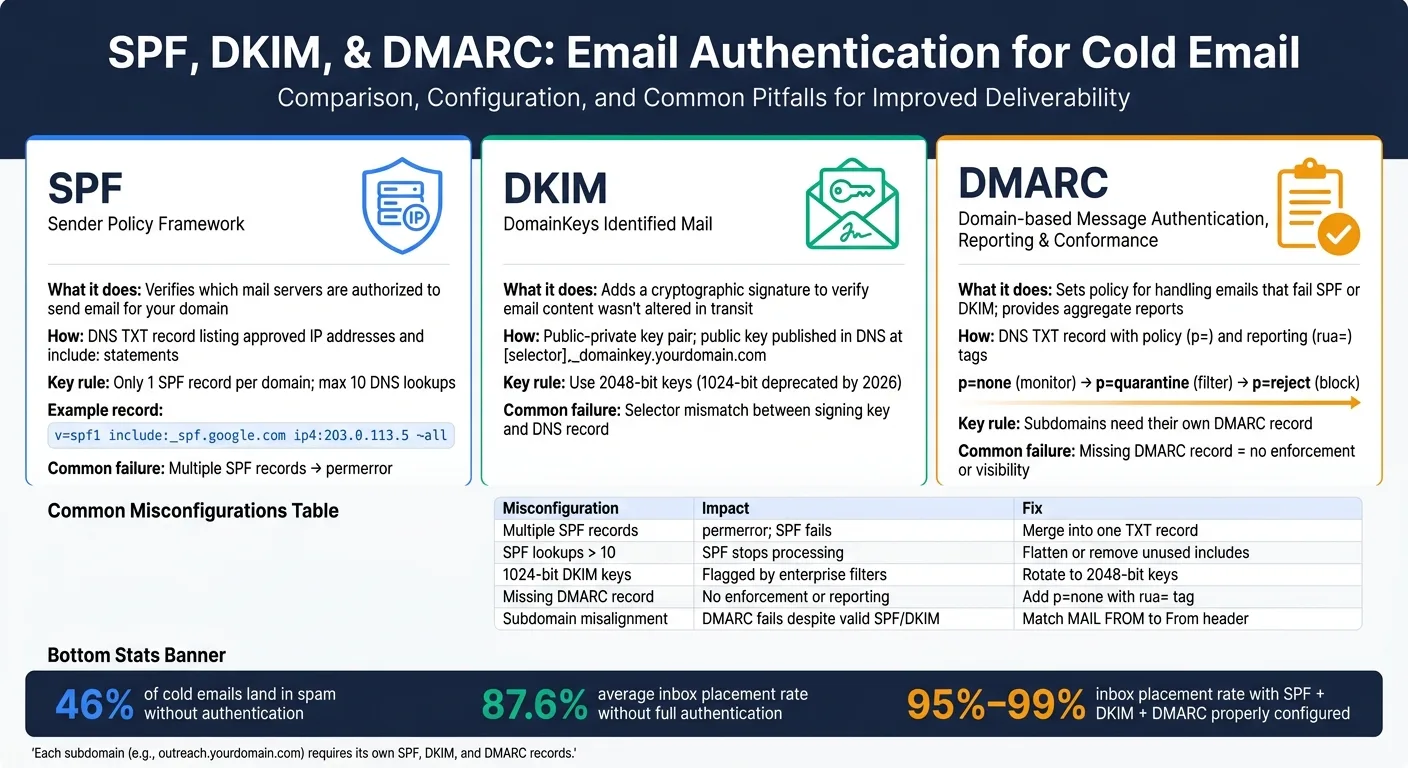
This section dives into how SPF, DKIM, and DMARC work together to secure your cold email campaigns and improve deliverability.
How SPF, DKIM, and DMARC Work Together
Each of these protocols plays a distinct role in email authentication:
- SPF ensures that the server sending the email is authorized to do so for your domain.
- DKIM confirms that the email’s content hasn’t been altered during transit.
- DMARC enforces policies based on SPF and DKIM results and provides feedback when authentication fails.
Here’s the catch: if the domain in the visible From header doesn’t align with the domain authenticated by SPF or DKIM, DMARC will fail - even if SPF and DKIM pass individually. This misalignment is common in cold email campaigns, especially when third-party platforms are used. Without all three protocols properly configured, your email security weakens significantly.
The impact is clear. Studies show that 46% of cold emails end up in spam when authentication is missing or the sending domain is "cold". On the other hand, properly configured email systems can achieve inbox placement rates as high as 98% to 99%.
Common Misconfigurations and How to Address Them
Missteps in email authentication are often due to a few recurring errors. Here's a breakdown of common issues and their fixes:
| Misconfiguration | Impact | Fix |
|---|---|---|
| Multiple SPF records | Triggers "permerror"; SPF fails | Combine all rules into a single TXT record |
| SPF lookup count > 10 | Stops processing; SPF fails | Flatten records or remove unused include: tags |
| 1024-bit DKIM keys | Fails at enterprise-level filters | Rotate to at least 2048-bit keys |
| Missing DMARC record | No enforcement or feedback | Add a DMARC record with p=none and a rua tag for reports |
| Subdomain misalignment | DMARC fails despite valid SPF/DKIM | Ensure MAIL FROM domain matches the From header |
One common issue is "authentication drift", where unused include: tags in SPF records pile up over time, increasing lookup counts and risking failures. Similarly, DKIM keys may expire if not rotated regularly. Running a quarterly audit can help you catch and fix these issues before they hurt your email deliverability.
Best Practices for Cold Email Authentication
To protect your domain's reputation and improve cold email performance, send emails from a dedicated subdomain like outreach.yourdomain.com. This setup isolates the reputation of your primary domain from any risks associated with high-volume outreach. It also ensures that transactional emails and customer communications remain unaffected. Keep in mind that each subdomain needs its own SPF, DKIM, and DMARC records, as these settings aren’t inherited from the parent domain.
If you’re managing multiple domains, manual DNS configuration can be tedious and error-prone. Tools like OutreachFox (outreachfox.ai) automate DNS setup, ensuring correct SPF, DKIM, and DMARC configurations. For instance, Jānis Plūme, CEO of Outbound Pros, successfully used automated DNS provisioning to manage over 300 mailboxes, achieving "perfect deliverability" with minimal effort over six months.
Finally, always test your setup. Send a test email to a personal inbox and check the Authentication-Results header. This step ensures that your DKIM selector resolves correctly and that your SPF domain aligns with the From header. These small checks can reveal subtle issues that might otherwise go unnoticed. By following these steps, you’ll build a solid authentication framework that boosts your inbox placement and protects your email reputation.
Conclusion: Building a Solid Authentication Setup for Cold Email
Securing your cold email campaigns begins with setting up proper authentication. In 2026, protocols like SPF, DKIM, and DMARC aren't optional - they're the standard. Major providers like Google, Yahoo, and Microsoft expect full authentication for bulk senders. Skip this step, and your emails risk being flagged as spam or outright blocked.
Authentication isn't just a technicality; it's a game-changer. Cold email campaigns typically see an 87.6% inbox placement rate, but with proper authentication, that number can climb above 95%. Often, the difference comes down to common issues like missing DMARC records, misaligned MAIL FROM domains, or SPF records with too many lookups.
Here’s how to get it right:
- Use a single SPF record per domain to avoid conflicts.
- Set up 2048-bit DKIM keys with selectors that match your email platform.
- Begin with a DMARC policy set to
p=noneand enable RUA reporting to monitor before tightening enforcement.
Tools like OutreachFox (outreachfox.ai) simplify this process by offering dedicated mailboxes with pre-configured DNS settings. Even with automation, regular audits are a must. Overlapping SPF records or outdated DKIM keys can easily derail your deliverability. The key is to fix your infrastructure first - after all, subject lines and timing only matter if your emails actually land in the inbox.
When your authentication is rock-solid, the rest of your cold email strategy has a strong foundation to build on.
Frequently asked questions
Why does DMARC fail even when SPF and DKIM both pass?+
DMARC requires alignment between the domain in the visible From header and the domain authenticated by SPF or DKIM. If the MAIL FROM domain doesn't match the From header domain, DMARC will fail even when SPF and DKIM pass individually. This misalignment is particularly common in cold email campaigns when using third-party sending platforms.
What happens if I exceed the 10 DNS lookup limit in my SPF record?+
Exceeding the 10 DNS lookup limit defined by RFC 7208 triggers a permerror, which is a hard failure that causes your emails to be treated as unauthenticated. Each include statement and any nested includes count toward this limit. To fix this, you need to remove unused include statements or flatten your SPF records.
Do subdomains automatically inherit SPF, DKIM, and DMARC from the parent domain?+
No, subdomains do not automatically inherit authentication records from the parent domain. If you're sending cold emails from a subdomain like outreach.yourdomain.com, it requires its own separate SPF, DKIM, and DMARC configurations to ensure proper alignment and security.
Should I use 1024-bit or 2048-bit DKIM keys for cold email?+
You should use 2048-bit DKIM keys for cold email campaigns. While 1024-bit keys still function, they will be deprecated by 2026 and are already flagged as less secure by advanced spam filters. The recommended standard is 2048-bit keys for better security and deliverability.
What DMARC policy should I start with for a new cold email domain?+
Start with a p=none policy along with the rua tag to receive aggregate reports. This allows you to monitor all sending activity and identify legitimate sources without blocking any emails. Once you've validated all legitimate senders through the reports, you can progressively move to p=quarantine and eventually p=reject for full protection.
What are DMARC aggregate (RUA) reports and why are they important?+
RUA reports are XML files that show all IP addresses attempting to send email from your domain, including both legitimate and unauthorized sources. They are the only method to comprehensively track who is sending mail using your domain. These reports help you identify authentication issues and validate all sending sources before enforcing stricter DMARC policies.
What causes multiple SPF records and how does it affect deliverability?+
Multiple SPF records occur when you create more than one SPF TXT record for your domain, often accidentally during configuration. This triggers a permerror that causes SPF to fail completely, regardless of how accurate each individual record is. The solution is to combine all authorization rules into a single SPF TXT record.