A unified inbox combines cold email and LinkedIn replies into a single dashboard, using AI to categorize responses, automate sequence pauses, and improve follow-up management for higher conversion rates.
- Unified inboxes consolidate email and LinkedIn replies into one view for faster response times
- AI-powered tagging categorizes reply intent like Interested, Not Now, or Wrong Person automatically
- Automated sequence pausing prevents awkward follow-ups after a prospect replies on any channel
- Reply rates can increase from two percent to over eight percent within 30 days using unified systems
- Always respond on the same channel the prospect used to avoid confusion and maintain continuity
- Off-thread reply detection captures responses from different email addresses to prevent missed opportunities
Unified Inbox for Cold Email and LinkedIn Replies
Managing replies from cold emails and LinkedIn can be chaotic when juggling multiple platforms. A unified inbox fixes this by consolidating all responses into one dashboard, streamlining communication, and reducing missed opportunities. Tools like OutreachFox centralize email and LinkedIn replies, automate response categorization, and improve follow-up management. Here's what you need to know:
- What it does: Combines email and LinkedIn replies into one view for faster and more organized communication.
- Key features: AI tagging for reply intent, off-thread reply handling, and real-time syncing across channels.
- Setup essentials: Connect email accounts (Gmail, Outlook, etc.) and LinkedIn profiles, configure SPF/DKIM/DMARC for deliverability, and verify syncing.
- Best practices: Pause sequences when replies come in, use filters and tags to prioritize, and stick to the prospect's chosen channel for replies.
Unified inboxes simplify workflows, save time, and improve response rates - OutreachFox users report reply rates increasing from 2% to 8.4% in 30 days. If you're tired of switching tabs and missing leads, a unified inbox could be the solution you need.
Setting Up a Unified Inbox for Email and LinkedIn
What Is a Unified Inbox and Why Use One?
A unified inbox is a centralized dashboard that gathers responses from all your connected email accounts and LinkedIn profiles into one place. This means you can view and manage all replies in a single, streamlined view - complete with the full conversation context.
This setup isn't just about convenience; it helps you respond faster. Some platforms with this feature also address off-thread replies, which occur when a prospect replies using a different email address than the one you originally contacted. Without this functionality, those messages might go unnoticed altogether.
What You Need Before Setting Up a Unified Inbox
Before diving into the setup process, make sure you have these essentials ready:
- Email accounts: Whether you're using Gmail, Outlook, or custom SMTP, ensure your accounts are properly configured to avoid problems with email deliverability.
- LinkedIn profiles: Have at least one LinkedIn account under your control, ready to connect to your outreach platform.
- A central workspace: Choose a platform that supports both email and LinkedIn natively, so you’re not relying on third-party integrations to tie everything together.
To avoid syncing issues caused by deliverability errors, automated configuration of SPF, DKIM, and DMARC records is critical. This ensures smooth communication between your accounts and the platform.
With these basics in place, let’s explore how OutreachFox simplifies the process.
How OutreachFox Handles Unified Inbox Setup
OutreachFox takes a unique approach to setting up a unified inbox by focusing on the infrastructure first. It provides private, pre-warmed, and isolated mailboxes, allowing you to skip the usual 2–4 week warmup period and start operating in about ten minutes.
After connecting your email and LinkedIn accounts, all replies are funneled into a single inbox. OutreachFox uses AI tagging to categorize responses based on intent, making it easier to prioritize and manage replies. Its API-first design ensures that every inbox event - whether it’s a reply, thread update, or sequence pause - can trigger a webhook, keeping your CRM or other tools automatically updated.
For agencies managing multiple clients, OutreachFox’s isolated infrastructure per workspace ensures that one client’s sending behavior won’t interfere with another’s reply visibility or deliverability, maintaining smooth operations across the board.
Connecting Email and LinkedIn to Your Inbox
How to Connect Email Accounts
To integrate your email accounts, start by setting up authentication. For Gmail or Workspace accounts, use App Passwords, while Outlook and SMTP accounts may require standard credentials or API integrations. This process also handles the automatic configuration of SPF, DKIM, and DMARC for custom domains. Danny Goff, Director of Sales at Propeller, highlights the efficiency of this setup:
"Procedures that usually took hours (setting DKIM, SPF, etc. records) for multiple domains, now take a few minutes."
Before launching your first campaign, make sure to initiate a warmup for any new mailbox. This step helps establish a solid sender reputation.
How to Add LinkedIn Accounts to Your Inbox
You can link your LinkedIn profile directly to your workspace, ensuring replies land in the same unified inbox as your email responses. With tools like OutreachFox, there’s no need to switch tabs or logins - everything is consolidated in one place. If you’re managing multiple LinkedIn profiles, connect each one individually to maintain a centralized view of all replies.
How to Verify Message Syncing Across Channels
Once your email and LinkedIn accounts are connected, check your unified inbox to confirm that messages from all linked channels are syncing in real time. To test, send a reply from the unified inbox and ensure it appears in the native sent folder. This confirms that two-way syncing is functioning correctly.
A key detail to watch for: prospects sometimes reply from a different email address than the one you initially contacted. A well-configured unified inbox captures these off-thread replies and associates them with the correct prospect record, so no messages are missed. If you notice AI-generated intent labels on incoming messages, that’s a good sign the sync and processing layers are working as intended.
Once syncing is verified, you can start organizing replies using routing and labels for better workflow management.
Organizing Replies with Routing and Labels
How to Classify Replies by Intent
When replies start rolling in from email and LinkedIn, the first hurdle is figuring out the intent behind each one - fast. Unified inboxes simplify this by using AI to analyze every message and assign intent-based labels like Interested, Not Now, or Wrong Person. This means you don’t have to open every email to figure out what’s what.
Why does this matter? Because not all replies are created equal. A message from a prospect asking about pricing should get immediate attention, while an out-of-office reply can wait. AI-driven categorization helps you prioritize, saving time and ensuring no important lead slips through the cracks. As Azan, Founder of Anlyto, puts it:
"We went from 2% reply rate to 8.4% in 30 days. The sequences feel genuinely personal and the AI reply sorting saves us hours every week."
Using Filters, Tags, and Labels to Sort Replies
Tagging replies is just the start - you also need filters to act on those tags. For example, you can set up your inbox so that any reply labeled Interested triggers a Slack notification to the relevant account owner, while Out of Office replies are tagged quietly without disrupting your workflow.
Here’s a tip: start with your AI classifier in draft mode. Let it tag the first 50–100 replies without taking any automated actions. This gives you a chance to review its accuracy and ensure the classifications match your team’s expectations. Once you’re confident in its performance, you can switch to full automation.
Reply Categories, Suggested Actions, and Routing Rules
Here’s a quick breakdown of common reply types, how to handle them, and the routing rules you can use to keep everything running smoothly:
| Reply Category | AI Label | Suggested Action | Routing Rule |
|---|---|---|---|
| Prospect asks for a demo, pricing, or meeting | Interested | Send a booking link or personalized reply | Pause sequence; notify account owner immediately |
| Prospect is open but asks to reconnect later | Not Now | Add a follow-up reminder; tag for re-engagement | Pause current sequence; set a resume date |
| Prospect indicates they are not the right contact | Wrong Person | Request a referral to the correct stakeholder | Update lead record; add referral to a new campaign |
| Prospect asks to be removed | Unsubscribe | Move to suppression list immediately | Stop all sequences for that contact and domain |
| Automated out-of-office response | OOO | Schedule sequence resume for return date | Pause sequence for 7–14 days |
| Hard bounce or delivery failure | Technical Issue | Check sending domain’s health | Flag the sending account for review |
One often-overlooked rule is to pause sequences as soon as any reply is detected, regardless of the intent. Whether someone says, “Let’s talk” or “Please remove me,” continuing to send automated follow-ups can damage the relationship before it even gets off the ground. Prioritizing thoughtful responses over automation in these moments will always pay off.
Unified LinkedIn & Email Inbox | HeyReach Integration for B2B Sales Outreach
Managing Replies Across Email and LinkedIn
How to Reply Without Breaking Conversation Threads
Once you've set up your routing rules, the next step is managing replies without losing track of the conversation. A well-designed unified inbox allows you to respond directly from the same dashboard where the message appears. This ensures you stay organized and maintain continuity.
The key is having a platform that keeps the entire conversation history in one view. When you open a prospect's record, you should see everything - LinkedIn connection requests, follow-up messages, and cold emails - all arranged chronologically. Replying from this unified view automatically ties your response to the correct thread.
A common challenge arises when prospects reply from a different email address than the one you initially contacted. Tools like OutreachFox solve this by linking the response to the original lead record, avoiding duplicate entries and keeping the conversation intact.
These scenarios highlight the importance of tailoring your engagement strategy based on the platform you're using.
Key Differences Between Email and LinkedIn Replies
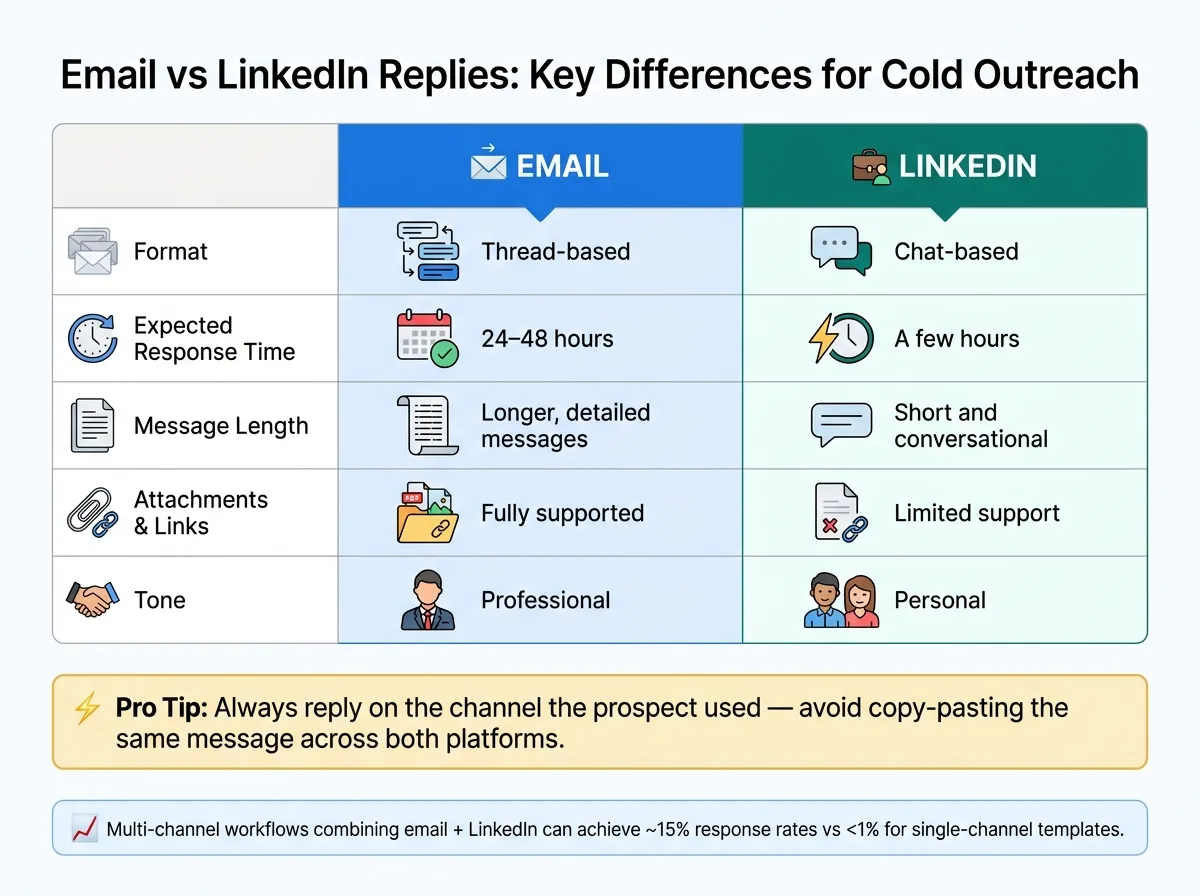
Email and LinkedIn replies have distinct characteristics, and your approach should reflect these differences.
- Email replies are thread-based. They keep a detailed history of the exchange, allowing for longer, more formal responses. You can include attachments, calendar links, or other resources. Typically, the response time expectation is within 24–48 hours.
- LinkedIn replies are chat-based, resembling text messages more than formal emails. They're shorter, more conversational, and often require quicker responses - usually within a few hours. The tone is more personal, as you're communicating as an individual rather than through a company email.
| Dimension | ||
|---|---|---|
| Format | Thread-based | Chat-based |
| Expected Response Time | 24–48 hours | A few hours |
| Message Length | Longer, detailed | Short and conversational |
| Attachments/Links | Supported | Limited |
| Tone | Professional | Personal |
These differences matter. Copy-pasting the same response across both platforms can backfire. For instance, a formal, multi-paragraph email-style reply sent on LinkedIn might feel out of place and could discourage further interaction.
Keeping One Response Path Per Prospect
When prospects use both email and LinkedIn to communicate, responding on both channels can create unnecessary confusion. Prospects might not know where to continue the conversation, and your team risks sending mixed messages.
The best strategy? Stick to the channel the prospect used to reply. If they responded on LinkedIn, keep the conversation there. If they replied via email, stay within email. Update the lead record to reflect the active channel so your team has a clear picture of where the conversation is happening.
Colton, the founder of Jumper Media, shared his experience after adopting this method across his team of eight sales reps using a unified inbox:
"We got one inbox manager handling inbox replies for 8 of our sales reps. Aimfox's Unibox literally has every functionality we need to stay organized!"
Using a single response path per prospect also simplifies handoffs. When another team member takes over, they can immediately access the full conversation history without digging through multiple platforms.
Managing Follow-Ups from the Unified Inbox
When to Pause or Resume Campaign Sequences
Managing follow-ups effectively is a critical part of any outreach strategy, especially when using a unified inbox that centralizes email and LinkedIn replies. Here’s the golden rule: pause the automated sequence as soon as a prospect replies. A unified inbox can detect replies from any channel and automatically halt pending email steps, saving you from sending awkward, scripted follow-ups that could jeopardize the conversation.
For clear responses like "yes, let's talk", pause the sequence, move the prospect to a booking stage, and assign a human representative to take over. If the reply is softer - something like "check back with me in a few weeks" - you’ll need to manually schedule a follow-up or move them into a nurture sequence.
Once you've set up reply-based pauses, the next focus should be on automating workflows for prospects who remain unresponsive.
How to Automate Follow-Up Workflows
For prospects who don’t reply, conditional logic can be a game-changer. Instead of repeatedly following up through the same channel, use "if/then" rules to shift between channels based on how the prospect engages. For instance:
- If a prospect opens your email but doesn’t reply within three days, trigger a LinkedIn connection request.
- If they accept your connection but still don’t respond, follow up with a short LinkedIn message two days later.
This multi-channel approach consistently outperforms single-channel follow-ups. Studies show that combining email and LinkedIn touchpoints in a single workflow can bump response rates to around 15%, compared to less than 1% for generic, single-channel templates.
"The ability to combine LinkedIn and email in a single workflow gives us more touchpoints without extra complexity. It's simple, powerful, and efficient." - Ethan Rodriguez, Growth Manager, LaunchGrid
AI tools can further improve follow-up efficiency by categorizing replies based on intent - Interested, Not Interested, Meeting Booked, or Follow Up Later - and routing them to the appropriate next step. One user reported increasing their reply rate from 2% to 8.4% in just 30 days after implementing AI-driven reply sorting and tailored sequences.
These conditional workflows feed directly into a more organized and effective follow-up strategy, as exemplified by OutreachFox’s system.
How OutreachFox Handles Follow-Up Management
OutreachFox takes follow-up management to the next level by fully automating the process within its centralized framework. Replies are captured in one place, and active sequences are automatically paused, eliminating the need to juggle multiple platforms.
Their multichannel sequence builder allows for conditional branching, so you can customize follow-up steps based on specific prospect actions - whether it’s an email open, a link click, or a LinkedIn connection acceptance. With real-time analytics for each mailbox and campaign, you can quickly identify which follow-up steps are driving results and which might need tweaking.
For teams managing multiple campaigns, this system removes the guesswork from follow-up timing and ensures every prospect is guided along the right path. It’s a streamlined, data-driven way to keep your outreach efforts on track.
Conclusion: Managing Cold Email and LinkedIn Replies in One Place
Bringing all your messages into one inbox eliminates the chaos of switching between platforms and ensures no potential deal gets overlooked. Fragmented communication is often why opportunities are missed, but a unified inbox keeps every conversation within easy reach.
The process outlined in this guide is straightforward: connect your accounts, confirm syncing works, set up labels and routing rules, and stick to one response path per prospect. Automating follow-ups based on actual engagement signals further reduces manual effort and keeps your outreach smooth and scalable.
Teams leveraging AI-powered unified inboxes have seen reply rates jump from 2% to 8.4% in just 30 days. Achieving this level of efficiency is nearly impossible with disconnected tools.
OutreachFox makes this process seamless, offering built-in features for everything from account integration to AI-driven reply categorization and real-time analytics - no need to juggle multiple platforms.
"Every reply lands in one place and becomes a deal in a click. No interested buyer slips away because a thread got buried." - Outpulse
This streamlined system not only organizes your communications but also ensures no opportunity is lost. If scattered inboxes and disorganized prospect data are slowing you down, switching to a unified inbox is the solution - and the benefits often show up quickly.
Frequently asked questions
How does a unified inbox handle off-thread replies from prospects?+
Off-thread replies occur when prospects respond from a different email address than the one you originally contacted. A properly configured unified inbox automatically captures these messages and links them to the correct prospect record, preventing duplicate entries and ensuring no responses are missed.
Should I reply to prospects on both email and LinkedIn if they use both channels?+
No, you should stick to whichever channel the prospect used to reply. Responding on both platforms creates confusion about where the conversation should continue and can lead to mixed messages. Update the lead record to reflect the active channel so your team knows where to engage.
What happens to automated sequences when a prospect replies in OutreachFox?+
OutreachFox automatically pauses active sequences as soon as any reply is detected, regardless of the intent. This prevents awkward automated follow-ups from continuing after a prospect has engaged, protecting the relationship and allowing for appropriate human response.
How does AI tagging work for categorizing replies in a unified inbox?+
AI tagging analyzes incoming messages and automatically assigns intent-based labels like Interested, Not Now, Wrong Person, or Unsubscribe. This allows you to prioritize responses without opening every message, with some platforms reporting reply rate increases from 2% to 8.4% after implementing AI-driven sorting.
Do I need to warm up mailboxes before using OutreachFox's unified inbox?+
OutreachFox provides private, pre-warmed, and isolated mailboxes that allow you to start operating in about ten minutes, skipping the typical 2-4 week warmup period. However, any new mailbox you add yourself should still undergo a warmup process to establish sender reputation.
What authentication records need to be configured when connecting email accounts?+
You need to configure SPF, DKIM, and DMARC records for your custom domains to ensure proper email deliverability. Platforms like OutreachFox automate this configuration process during account setup, reducing what typically takes hours down to just a few minutes.
How should email and LinkedIn reply strategies differ in a unified inbox?+
Email replies are thread-based with 24-48 hour response expectations and support longer, formal messages with attachments. LinkedIn replies are chat-based, requiring faster responses within a few hours, using shorter conversational tones. Copy-pasting the same response across both platforms can feel inappropriate and discourage engagement.