
Most DKIM problems stem from bad DNS, post-signing message changes, or sender mismatches. Start with Authentication-Results, verify DNS and selectors, inspect signatures, then check alignment.
- Check Authentication-Results first to identify the exact failure state before troubleshooting
- 2048-bit DKIM keys are the 2026 baseline; 19% of domains still use weak 1024-bit keys
- DKIM can pass while DMARC fails due to misalignment between d= and From domains
- Rotate keys safely by publishing new records 48-72 hours before switching signers
- Map every sending tool and assign clear ownership to prevent operational drift
- Third-party ESPs often sign with their own domains until custom DKIM is enabled
DKIM Troubleshooting Checklist for 2026
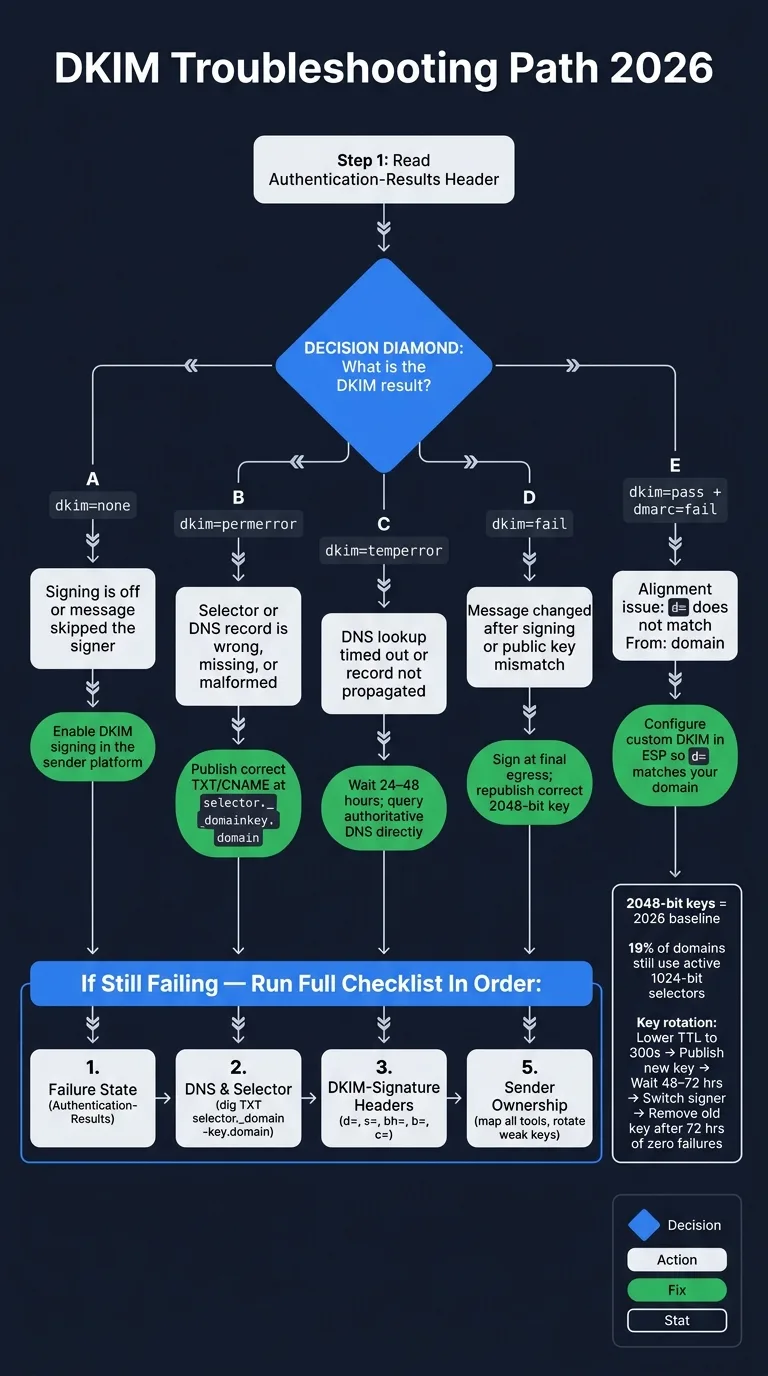
Most DKIM problems come from just three places: bad DNS, message changes after signing, or a sender setup mismatch. If I were troubleshooting this today, I’d start with Authentication-Results, then check the selector and DNS record, then inspect the DKIM-Signature, and only after that look at DMARC alignment and mail flow.
Here’s the short version:
- If I see
dkim=none, signing is off or the message skipped the signer. - If I see
dkim=permerror, the selector or DNS record is wrong, missing, or malformed. - If I see
dkim=temperror, DNS lookups likely timed out or records have not finished propagating. - If I see
dkim=fail, the message was often changed after signing or the public key does not match. - If I see
dkim=passbutdmarc=fail, the issue is usually alignment betweend=and the visibleFrom:domain.
A few points stand out:
- 2048-bit DKIM keys are the 2026 baseline
- 19% of domains still have at least one active 1,024-bit selector
- Key rotation works best when I lower TTL to 300 seconds, publish the new key first, wait 48–72 hours, then switch the signer
- Third-party tools like SendGrid, HubSpot, Mailchimp, and Microsoft 365 often pass DKIM with their own domain unless custom DKIM is turned on
| Failure state | What I’d check first | Usual fix |
|---|---|---|
dkim=none | Signing status in the sender platform | Turn on DKIM signing |
dkim=permerror | Selector, hostname, TXT/CNAME format | Fix the record at selector._domainkey |
dkim=temperror | Public vs. authoritative DNS answers | Wait, then recheck DNS |
dkim=fail | Body changes, header changes, bad key | Sign at final egress and republish the right key |
dkim=pass + dmarc=fail | d= vs. From: alignment | Set up custom DKIM |
So the article’s core message is simple: define the exact failure first, then work in order instead of guessing. I’d use one path every time - results, DNS, signature, alignment, ownership - because that cuts down wasted changes and helps isolate the actual break.
Why does DKIM fail? DKIM Failure Types, Examples and Fixes
1. Verify the DNS record and selector
Now that you know the failure state, check the published key. In a lot of cases, the problem is right here: a typo in the selector, a cut-off key, or DNS that just hasn’t caught up yet.
Check the selector hostname, TXT value, and key format
Match the s= value in the header to the DNS hostname you published. The public key belongs at [selector]._domainkey.[domain], like selector._domainkey.yourdomain.com. If that hostname is off, the receiving server won’t find the key.
A few mistakes show up again and again:
- Adding the domain twice, like
selector._domainkey.example.com.example.com - Leaving out the underscore in
_domainkey - Publishing a TXT record when the ESP wants a CNAME, or the other way around
If you’re still using a 1024-bit DKIM key, it’s time to move on. Use a 2048-bit key and make sure the full p= value is published. Long 2048-bit keys can be split into multiple quoted TXT strings, which is normal. What you don’t want is DNS cutting off the p= value partway through.
Run:
dig TXT selector._domainkey.yourdomain.com +short
This shows the record the same way resolvers see it. If you get nothing back, the selector record is missing or published in the wrong place. If the p= value looks incomplete, the key was likely cut off.
| Symptom | Likely DNS Cause | Fix |
|---|---|---|
dkim=permerror (no key) | Missing record or selector typo | Publish the record at selector._domainkey.domain |
dkim=fail (bad signature) | Truncated or weak key | Re-publish the full 2048-bit key; check for split-string errors |
dkim=pass but dmarc=fail | Domain misalignment | Configure custom DKIM in the ESP so d= matches the From domain |
dkim=temperror | DNS propagation delay or timeout | Wait 24–48 hours; check TTL settings; query authoritative DNS directly |
| No DKIM header found | Signing disabled in the platform | Enable DKIM in the ESP's admin or sender settings |
If the record is there and DKIM still fails, the next thing to check is whether the selector in the message header matches what you published.
Confirm the sending service uses the same selector you published
Selector mismatches are common after platform moves or when a provider swaps its default selector behind the scenes. Pull the s= value from the DKIM-Signature header in a test email, then make sure that exact selector exists in DNS.
Some ESPs also need one more step after DNS is live: you publish the record, then still have to turn signing on in the platform. It’s easy to miss.
If the selector matches and signing is active, check whether the message changed after it was signed.
Wait for propagation, then query authoritative DNS again
Query the authoritative nameserver directly:
dig TXT selector._domainkey.yourdomain.com @ns1.your-dns-provider.net
Start there, then compare the result with a public resolver. If the answers don’t match, let propagation finish before changing anything else. Otherwise, you can end up fixing the wrong problem.
If you’re rotating keys, lower the TTL to 300 seconds before the switch. Publish the new record first. Make sure it shows up across resolvers. Then point the signer to the new selector.
2. Inspect the DKIM signature in the message headers
Once DNS checks out, look at the message itself. Open the full headers and raw source - "Show original" in Gmail or "Message options" in Outlook - then search for the DKIM-Signature: header.
If you don't see it, that usually means signing is off or the message skipped the signer.
Check that the DKIM-Signature header is present and parseable
If the header is there, zero in on a few key fields:
d=: the signing domains=: the selectorbh=: the body hashb=: the signature itselfc=: the canonicalization method
Also check h=. That tag shows which headers were part of the signature.
Compare Authentication-Results with the signature fields
Use Authentication-Results to see what actually went wrong. That's the best place to tell whether the issue is missing signing, body tampering, DNS key lookup trouble, or domain alignment.
Don't rely only on what the sending platform says. The platform may report one thing while the receiving server sees another.
Microsoft 365 often signs with .onmicrosoft.com by default. So DKIM may pass while DMARC still fails, at least until you set up a custom selector for your sending domain.
Check for post-signing changes
If the message body changed after signing, look at the c= tag. simple/simple is fragile. Even small whitespace edits from a server in the middle can break it. relaxed/relaxed gives you more room for those minor changes.
Then review the Received headers. You're looking for any hop that may have altered the message after signing, such as:
- gateways
- CRMs
- tracking tools
- list servers
If the body changed after signing, fix the last system in the mail path before the message leaves your stack.
If the signature is valid but delivery still fails, the next thing to check is domain alignment and mail flow.
3. Check domain alignment and mail flow
A DKIM pass can still end in a DMARC fail. When that happens, the problem is usually alignment, not the signature itself.
Confirm the DKIM signing domain aligns with the From domain
If DNS checks out and the signature validates, the next place to look is alignment. DMARC alignment is set by adkim.
- Relaxed mode (
adkim=r) - the default - lets a subdomain line up with the parent domain. Somail.example.comind=aligns withuser@example.cominFrom:. - Strict mode (
adkim=s) needs an exact match. In that case,mail.example.comwould fail againstexample.com.
Here are the match rules:
d= Domain | From: Header | adkim=r | adkim=s |
|---|---|---|---|
example.com | user@example.com | Pass | Pass |
mail.example.com | user@example.com | Pass | Fail |
sendgrid.net | user@example.com | Fail | Fail |
a.example.com | user@b.example.com | Pass | Fail |
This is where third-party senders often trip up. Platforms like SendGrid, HubSpot, and Mailchimp sign with their own domain by default - d=sendgrid.net, d=hubspot.com. That setup can pass DKIM verification but still fail DMARC alignment.
The fix is simple: turn on custom DKIM so d= uses your domain instead of the vendor's. Microsoft 365 has a similar issue. It defaults to .onmicrosoft.com until custom DKIM is set up.
Separate DKIM alignment checks from SPF alignment checks
DMARC passes if either SPF or DKIM both authenticates and aligns. So a DMARC pass doesn't tell you which one saved the message. And a DMARC fail doesn't tell you which part fell apart.
Check Authentication-Results closely. If you see dkim=pass next to dmarc=fail, the signature is fine and alignment is the problem. If you see spf=pass and dkim=fail, SPF may be carrying the message for now.
That said, SPF is a shaky backup. It often breaks on forwarding. DKIM usually holds up better.
Check forwarding paths, secure gateways, and list servers
If alignment looks right but mail still fails, trace the full mail path. The usual trouble spots are systems that change the message after it was signed.
A few common ones:
- Secure email gateways like Barracuda and WatchGuard can do deep packet inspection on outbound SMTP and quietly rewrite the message body. That leads to a
body hash did not verifyfailure. The fix is to exempt outbound SMTP traffic from DPI. - Exchange mail flow rules that add legal disclaimers or footers after signing will break the body hash too. Move those rules so they run before the DKIM signing step.
- Mailing lists and helpdesks such as Zendesk or Salesforce can add footers or re-encode headers, which causes the same kind of break.
For forwarded mail, ARC keeps the upstream authentication results. ARC does not repair a broken signature, but it does preserve the original authentication result.
Map every system that can rewrite, re-encode, or append to the message. Then make sure signing happens last, after all footers, disclaimers, and rewrites.
4. Fix key management and sending-stack drift
Your DNS can look fine. Your mail flow can look clean. And yet DKIM can still keep breaking.
Why? In most cases, the root issue is operational drift. Weak keys, old selectors, and sending tools nobody wrote down are what keep these problems coming back.
Rotate weak or outdated keys and remove unused selectors
2048-bit keys are the 2026 standard. If you're still using a 1024-bit key, some receivers may see it as weak. And this isn't rare: 19% of domains still have at least one active 1024-bit selector.
Start by checking the published selector record. Then confirm it matches the system that's actually signing your mail. That one step saves a lot of guesswork.
When you rotate to a new key, timing matters. A sloppy swap is one of the easiest ways to break DKIM.
Here's the safe sequence:
- Lower your TTL to 300 seconds at least 24 hours before the change
- Publish the new record first
- Wait 48–72 hours for propagation
- Switch the signer
- Remove the old record only after 72 hours of zero reported failures in DMARC reports
That overlap matters. Skip it, and rotation failures become much more likely, especially if your TTL is 1,800 seconds or higher.
It also helps to clean up orphaned selectors. These are DNS records left behind by tools or platforms you no longer use. They don't always break mail on their own, but they make troubleshooting messy. A quarterly audit is usually enough to spot stale selectors from retired providers and delete them.
Map every tool that can send or modify mail for the domain
A lot of DKIM failures come from one system nobody thought to check.
Before touching any DNS record, make a full list of every tool that sends mail under your domain. That usually includes Google Workspace, Microsoft 365, your CRM, transactional email services, support desks, marketing platforms, billing systems, internal relays, and contact forms.
Each platform needs its own selector and key pair. If two services use the same selector name, one can overwrite the other’s DNS record. That kind of conflict is easy to miss until mail starts failing.
DMARC aggregate reports are one of the fastest ways to spot this kind of drift. Watch for sources signing with provider domains like d=sendgrid.net or d=hubspot.com instead of your own domain. If you see that, those mail streams need custom DKIM set up inside the provider.
Assign clear ownership of DNS, signing, and monitoring
The DKIM issues that drag on the longest usually aren't about syntax or DNS lookups. They're about ownership.
If DNS, signing, and monitoring are handled by different people or teams, changes happen out of sync. One team updates a record. Another changes a sender. Nobody checks the reports. Then the failure sits there until deliverability drops.
Set one person or team as the owner of authentication policy. That group should maintain the source of truth for:
- Which selectors are active
- Who controls DNS
- Who reviews DMARC aggregate reports, and how often
This gets even more important for agencies or RevOps teams that manage many client domains. One undocumented DNS change on a single domain can turn into hours of troubleshooting across the account.
If you're running cold outreach at scale, platforms like OutreachFox can set up SPF, DKIM, and DMARC automatically on isolated sending infrastructure. That gives each client or campaign domain its own authentication setup without manual DNS coordination.
Conclusion: A repeatable DKIM troubleshooting path
Most DKIM failures in 2026 come back to three things: DNS problems, changes made after signing, or sender setup issues. In practice, DKIM tends to break during deployment, not during design.
Stick to the same sequence every time. Start with Authentication-Results. Then check s= and d= and match them to the published selector. If dkim=fail, look for changes made after the message was signed. If dkim=pass but dmarc=fail, the issue is usually alignment, so fix that in your ESP.
| Result | Cause | Fix |
|---|---|---|
dkim=none | Signing off | Enable signing in the platform |
dkim=permerror | Bad or missing record | Publish TXT/CNAME at selector._domainkey |
dkim=fail | Message changed after signing | Move signing to the final egress hop |
dkim=pass / dmarc=fail | Alignment issue | Configure custom DKIM in ESP settings |
Run the checklist in this order each time: failure state, DNS, headers, alignment, then sender ownership. It keeps you from guessing and helps avoid false fixes.
Frequently asked questions
What does it mean when I see dkim=permerror in my email headers?+
A dkim=permerror result means the selector or DNS record is wrong, missing, or malformed. The receiving server cannot find or parse the public key at the expected DNS location (selector._domainkey.yourdomain.com). Common causes include typos in the selector name, missing the underscore in _domainkey, publishing the record at the wrong hostname, or having a truncated public key value.
Why does the article recommend 2048-bit DKIM keys as the 2026 baseline?+
The article states that 2048-bit keys are the 2026 standard, while noting that 19% of domains still use at least one 1024-bit selector. Some receivers may now treat 1024-bit keys as weak or outdated. Moving to 2048-bit keys ensures better compatibility and security as email authentication standards evolve.
How do I prevent DKIM failures when rotating keys?+
Lower your DNS TTL to 300 seconds at least 24 hours before the change. Publish the new public key first, then wait 48-72 hours for full DNS propagation before switching your signer to use the new selector. Keep the old key active for at least 72 hours after the switch with zero reported failures before removing it.
What causes a dkim=pass result alongside a dmarc=fail result?+
This happens when the DKIM signature validates correctly but the signing domain (d= value) does not align with the From header domain. Third-party platforms like SendGrid, HubSpot, or Microsoft 365 often sign with their own domains by default. The solution is to configure custom DKIM in your ESP so the d= domain matches your actual sending domain.
What systems commonly break DKIM signatures after messages are signed?+
Secure email gateways that perform deep packet inspection, Exchange mail flow rules that add disclaimers or footers, mailing lists, helpdesks like Zendesk or Salesforce, and any system that rewrites message bodies or re-encodes headers can all break DKIM signatures. The fix is to ensure DKIM signing happens last, after all content modifications.
How can I identify which sending tools are signing email for my domain?+
Review DMARC aggregate reports to see which sources are sending mail and what domains they use for DKIM signing. Look for entries where d= shows provider domains like sendgrid.net or hubspot.com instead of your own domain. Also manually audit every platform that sends mail under your domain, including CRMs, transactional email services, support systems, and marketing tools.
What is the recommended troubleshooting order when DKIM fails?+
Start with the Authentication-Results header to identify the exact failure state (none, permerror, temperror, or fail). Then check the selector and DNS record for the public key. Next, inspect the DKIM-Signature header fields in the message. After that, verify domain alignment between d= and the From header. Finally, map your full mail flow to identify any systems that modify messages after signing.