LinkedIn flags stacked patterns like high volume, fixed timing, and weak personalization. To avoid blocks, warm accounts for 4 weeks, cap requests at 20–30 daily, vary timing, personalize every note, and pause immediately when acceptance ra
- Warm accounts manually for 4 weeks before automating any outreach
- Cap connection requests at 20–30 daily for warmed accounts, 5–10 for new ones
- Use 45–60 minute sessions with randomized delays, not all-day fixed intervals
- Personalize every message with a real trigger like shared posts or mutual connections
- Stop automation immediately when acceptance rates drop or CAPTCHAs appear
- Avoid browser extensions and keep logins consistent from the same IP region
Avoid the LinkedIn Action Block: 10 Safety Rules for Automated LinkedIn Outreach
If I automate LinkedIn outreach, I can cut my risk by doing 10 simple things: warm the account, keep request volume low, vary timing, personalize every note, fix my profile, limit follow-ups, track acceptance and reply rates, avoid browser extensions, keep logins steady, and stop at the first warning sign.
LinkedIn usually doesn’t act because of one message. It reacts to stacked patterns: too many requests, fixed timing, weak profile signals, copy-paste messages, odd login activity, and poor response data. For many teams, a drop in acceptance rate is the first clue. If my acceptance rate falls, or I start seeing CAPTCHAs or warning banners, I need to pause at once.
Here’s the article in one glance:
- Warm first: spend about 4 weeks on manual activity before automation
- Keep requests low: about 5–10/day for newer accounts, 20–30/day for warmed accounts
- Slow the pace: use a 45–60 minute session, not all-day sending
- Personalize each touch: use a shared link, post, group, or company event
- Fix the profile: photo, headline, work history, and recent activity matter
- Limit follow-ups: no constant nudges after someone accepts
- Watch the numbers: acceptance rate, reply rate, and “I don’t know this person” signals
- Be careful with tools: browser extensions carry more risk
- Keep logins steady: same IP region, same device pattern
- Stop on friction: banners, CAPTCHAs, login prompts, or sudden metric drops mean pause now
How to Avoid LinkedIn Bans: Safe Automation and Rate Limits Explained
Quick Comparison
| Area | Lower-risk pattern | Higher-risk pattern |
|---|---|---|
| Account start | Manual warm-up for 4 weeks | Automation on day one |
| Daily requests | 5–10 new / 20–30 warmed | High volume right away |
| Timing | Mixed delays, short session | Fixed intervals all day |
| Messages | Personal notes with a real trigger | Same template to everyone |
| Profile | Full profile with recent activity | Thin or inactive profile |
| Follow-ups | Spaced out, few touches | Fast, repeated nudges |
| Tool type | Controlled cloud setup | Browser extension running in-browser |
| Logins | Same region and device pattern | Frequent IP or location changes |
| Warning signs | Pause and review | Keep sending anyway |
The short version: I should treat LinkedIn safety like pattern control, not just volume control. If my behavior looks human and my numbers stay healthy, I’m less likely to hit trouble.
What Usually Triggers a LinkedIn Action Block
LinkedIn usually doesn’t block an account because of one single move. In most cases, blocks happen because of patterns that stack up over time. A mix of actions can start to look automated instead of human, and that’s when trouble starts.
The biggest trigger is high daily volume. If you send dozens of connection requests in a short period, especially from a newer account, that can set off alarms. The risk gets worse when the timing looks too perfect. If actions happen at a fixed, steady pace with no variation, it doesn’t look human because it’s not.
Profile trust also plays a big part in how LinkedIn reads your activity. A profile with no photo, a weak headline, or a thin work history can look sketchy. Add low acceptance rates on top of that, and the risk goes up even more.
Another common trigger is repetitive messaging. If you send the same generic message at scale, people are more likely to ignore it or report it. That can push risk up fast.
Then there’s login behavior and tool safety. Signing in from different IP addresses or using browser extensions that automate actions can leave signals LinkedIn can spot. The platform tracks device, browser, and IP patterns, so tools that handle those signals poorly can put accounts in a bad spot.
The rules below show how to lower each of these signals before LinkedIn does.
1. Warm the account before automation
LinkedIn often flags new or inactive accounts when they jump straight into high-volume outreach without any human activity behind them. A lot of teams miss this step. They connect a new profile to an automation tool right away, with no manual use to make the account look normal. Once the profile has a steady manual pattern, the next thing to watch is request volume.
A safer warmup sequence
Plan on about four weeks of manual activity before using any automation tool.
| Phase | Daily Activity | Focus |
|---|---|---|
| Week 1 | 0 requests | Profile optimization, listening, and research |
| Weeks 2–4 | 5–10 manual, personalized connection requests/day | Engagement, 5–10 comments/day, 10–15 relevant follows/day |
| Month 2+ | Gradual scaling only after steady acceptance rates | Light manual engagement before increasing request volume |
This starting point works best when daily request volume stays low and steady. Push too hard too soon, and you can undo the whole point of the warmup.
What to do if metrics dip
If performance starts to slip, stop automation first. Then go back to manual engagement and narrow your targeting before turning anything back on. If acceptance rates fall, don't treat volume as the first thing to fix. At that point, request count is.
2. Keep connection requests conservative
The risk signal LinkedIn may flag
LinkedIn tends to notice connection requests that come in too fast or lead to repeated "I don't know this person" responses. That puts request volume and pacing front and center.
The safe operating range
Treat these numbers as a ceiling, not a goal.
For warmed accounts, cap connection requests at 20–30 per day. For a new account, or one that was only recently warmed, start much lower: 5–10 highly personalized requests per day for the first month.
Here’s the key point: don’t set your tool’s daily cap above the account’s current trust level. Tool limits are just settings. They are not safety limits. If you scale too fast before trust is built, friction usually follows.
The corrective action to take if metrics dip
If acceptance rates start to fall, pull back. Cut daily volume, tighten targeting, and pause automation until performance steadies.
3. Use human-like pacing
The risk signal LinkedIn may flag
LinkedIn pays attention to rhythm just as much as volume. The problem isn't only how much you do. It's when actions happen in a pattern that feels too neat.
If connection requests and messages go out in fixed bursts, especially during sessions that are all outbound and nothing else, the account can start to look automated instead of human.
The safe operating range
Use a focused 45–60 minute daily outreach block instead of letting automation run all day.
A few simple pacing rules help:
- Leave at least 3 seconds between actions
- Avoid a rigid cadence that repeats all day
Think of it this way: people pause, switch tabs, read profiles, and get distracted. Bots don't.
The most common setup mistake
The biggest mistake is leaving the default delays untouched. Default timing often creates a fixed rhythm, and that's where trouble starts.
It's smarter to mix outreach with normal account activity so your session doesn't look like a nonstop stream of requests and messages.
The corrective action to take if metrics dip
If acceptance or reply rates start to slide, cut volume first. Then shorten the daily window and slow the sequence down before trying to scale up again.
Pacing lowers detection risk. Personalization cuts it even more.
4. Personalize every request and message
Once your pacing looks human, the next thing that matters is message relevance.
The risk signal LinkedIn may flag
Generic, copy-and-paste connection requests and templated messages are a major spam signal. If people keep ignoring your requests or marking them as "I don't know this person," that can put you on LinkedIn's radar.
It gets worse when the first message sounds too sales-heavy. Pushy outreach often looks automated, even when a person sent it.
Use a real trigger in every request, such as:
- A shared connection
- A mutual group
- A recent post
- An article
- Company news
The safe operating range
Reference a real trigger in every request so the note feels one-to-one, not like a blast sent to 500 people. Stick with neutral greetings like "Hi [Name]" or "Hello [Name]". Skip time-based openers.
For the first message, lead with something useful or a genuine question instead of a pitch. That small shift can change how the message lands.
The most common setup mistake
The biggest mistake is using one template and swapping only the first name or company name. That's not personalization. It's just mail merge with a nicer wrapper, and people can spot it fast.
A safer setup is to segment your list into narrow groups based on role, industry, or trigger event before writing the message. When the segment is tight enough, one template can still feel relevant because the context is real.
The corrective action to take if metrics dip
If acceptance or reply rates drop, tighten the ICP and add a real trigger, or narrow the list before you turn volume back up. Low acceptance rates or more "I don't know this person" responses usually mean your targeting is off or the trigger is too broad.
Strong personalization also depends on a profile people trust behind the message.
5. Keep the profile fully credible
Your profile is the first trust check before someone accepts a connection request. It shapes how LinkedIn reads every request, message, and follow-up that comes after it. If the profile looks weak, every later step can seem more risky.
The risk signal LinkedIn may flag
Low acceptance rates often point to weak trust. An incomplete or inactive profile - no photo, a generic job title, no recent activity - can look automated or fake. Profiles with no visible engagement history can also draw more scrutiny. If your feed shows no posts, likes, or comments, the account can look like it exists ONLY to send outreach.
The safe operating range
Think of your profile like a landing page. It should have a clear headline, a clear value statement, relevant experience, and a professional photo. Your headline should explain who you help and what you do. The About section should center on the problems you solve for your ICP. A few recent posts or comments can make the profile feel more credible and human.
The most common setup mistake
A lot of people turn on automation and leave their profile untouched. They start with a headline like "[Role] at [Company]" and a summary that sounds like LinkedIn filler.
The fix is simple:
- Update the headline so it reflects your value proposition
- Rewrite the summary around your prospect's pain points
- Make sure your work history has enough detail to confirm relevant experience
Do this before you run a single automated sequence.
The corrective action to take if metrics dip
If acceptance drops, check the profile before you change volume. Review the headline and summary against your current ICP. If there hasn't been any recent activity, add light engagement for a few days before you start outreach again. A credible profile lowers friction before automation volume goes up.
Once the profile looks credible, keep follow-ups restrained.
6. Limit message follow-ups
Once someone accepts your connection request, the next thing that matters is cadence. A solid profile may help you get accepted. But your follow-up timing is what helps keep the sequence safe.
The risk signal LinkedIn may flag
After someone accepts, frequent follow-ups can look like automation almost right away. Sending messages too often after acceptance is a clear signal LinkedIn may watch for.
And if you drop a sales pitch the moment the connection goes through, it can come across like bot behavior. That can lead to a restriction.
The safe operating range
Stick with a four-touch sequence spaced 3–5 days apart:
- resource
- question
- proof
- invite
Each message should move the conversation forward. Don’t send the same ask again and again.
The most common setup mistake
A common mistake is using the exact same follow-up for every prospect. That usually falls flat.
Instead, change the next step based on the segment or the trigger. A prospect who clicked, replied, or viewed your profile shouldn’t get the same message as someone who did nothing.
The corrective action to take if metrics dip
If reply rates fall, pause the sequence. Then tighten your targeting and rewrite any step that sounds generic before you start it up again.
Watch reply-rate changes as your early warning sign before you scale again.
Also keep an eye on acceptance rates and reply rates before adding more volume.
7. Track acceptance and reply rates
The risk signal LinkedIn may flag
After you’ve fixed pacing and personalization, the next thing to watch is performance data. This is where you often see trust start to slip before LinkedIn steps in.
LinkedIn pays attention to sending volume and response signals. If your acceptance rate drops or more people click "I don't know this person," that can point to action block risk. Those friction signals are often the first sign that a restriction could be on the way.
The safe operating range
Track these metrics by sequence and segment:
- Acceptance rate
- Reply rate
- "I don't know this person" flags
If either rate starts to fall, treat it like an early warning. Slow down before LinkedIn does it for you.
The most common setup mistake
In most cases, generic targeting shows up first in the numbers. You’ll usually see declining acceptance rates and reply rates before anything else.
The corrective action to take if metrics dip
If metrics drop, pause automation. Then tighten your ICP, rewrite generic steps, and rebuild engagement manually for a few days before you restart.
Those signals should guide your next move. Cut volume, pause automation, or switch back to manual outreach based on what the data is telling you.
8. Avoid browser-extension automation
Even if your sequence is paced well, browser extensions can still create friction when they leave plain browser signals behind.
The risk signal LinkedIn may flag
Browser extensions run inside the browser. That means their clicks, timing, and movement patterns are often easier to spot, especially when actions happen too fast or follow the same beat over and over.
That’s where things start to look off. A person pauses. A person gets pulled into another tab. A person slows down, stops, and comes back later. Extensions usually don’t. And when that rhythm turns too uniform, it breaks the same rule covered in sections 1–7: behavior should look human. LinkedIn also uses hidden checks to catch those patterns.
The safe operating range
If you're using extension-based outreach, stay at the low end of your daily cap.
A few rules help here:
- Keep sessions short
- Leave several minutes between requests, not seconds
- If you restart after a break, slow down even more before you return to your normal pace
Think of it like easing back into traffic. Jumping straight to full speed is where people get into trouble.
The most common setup mistake
The usual mistake is simple: teams install the extension, turn it on, and let it run at full speed with no throttling and no human review.
That setup can burn through actions fast and create a pattern that’s easy to spot.
The corrective action to take if metrics dip
If you get a CAPTCHA, see a LinkedIn warning, or notice a sudden drop in acceptance or reply rates, stop automation right away.
Then switch to manual outreach for a few days. Review your targeting and personalization. After that, restart at a slower pace.
If extension-based tools keep causing friction, move to a cloud or API workflow instead.
Once browser behavior is stable, the next risk is inconsistent IP or login behavior.
9. Keep IP and login consistent
The risk signal LinkedIn may flag
Pacing and personalization matter, but they’re only part of the picture. LinkedIn also looks at where an account logs in from.
If your login location keeps changing, or your account bounces between a cloud tool and a home connection, that can leave an uneven footprint. And that’s the kind of thing LinkedIn may flag as suspicious.
The safe operating range
Think of login consistency as part of normal human behavior. If you want your setup to look steady, keep automation and manual logins aligned around the same device pattern, browser, and IP region.
A dedicated residential proxy is the safer pick here. Skip shared data center IPs.
The most common setup mistake
The mistake that shows up again and again is simple: people run cloud automation, then log in manually from a different device or network.
That mismatch can trip alarms fast.
Use dedicated infrastructure, and stay away from shared IP pools.
The corrective action to take if metrics dip
If acceptance rates suddenly fall, or LinkedIn shows a security prompt at login, stop automation right away. Then steady your access pattern before you start again.
When you turn automation back on, do it slowly. Check your IP and login setup first.
If you were using shared infrastructure, switch to dedicated infrastructure. Otherwise, one bad neighbor on the same setup can burn the account too.
10. Stop immediately when friction signals appear
The risk signal LinkedIn may flag
After you review acceptance and reply rates in Rule 7, treat any new friction as a hard stop.
LinkedIn can restrict an account with no warning. Common signs include:
- a sudden drop in acceptance or reply rates
- an "invitation limit reached" banner
- warning banners
- CAPTCHAs
These problems often appear after a shift in volume, pacing, targeting, or login behavior. If you ignore them and keep going, a mild restriction can turn into a full action block fast.
The safe operating range
If friction shows up, stop all automation at once.
Then check the setup before you restart:
- volume
- IP consistency
- warmup status
- follow-up timing
Once your metrics return to normal, restart at a lower volume. Don't jump right back to the same pace that caused the issue.
The most common setup mistake
A single warning sign is enough to pause the campaign. Don't try to power through it.
Another common setup problem is a single point of failure. If all outreach runs through one IP or one server, one flag can take down every account tied to it. That's the kind of setup that looks fine right up until it doesn't.
The corrective action to take if metrics dip
If performance drops and you did not change the copy or targeting, treat that dip as a friction signal even if no banner has appeared yet.
Check recent activity closely. Did volume jump? Did the IP change? Did follow-ups start going out too soon?
Fix the root cause before restarting, not after. Restarting a broken setup usually makes the problem worse, and fast.
Use the next table to separate safe patterns from risky ones at a glance.
Safe vs. Risky Outreach Behaviors at a Glance
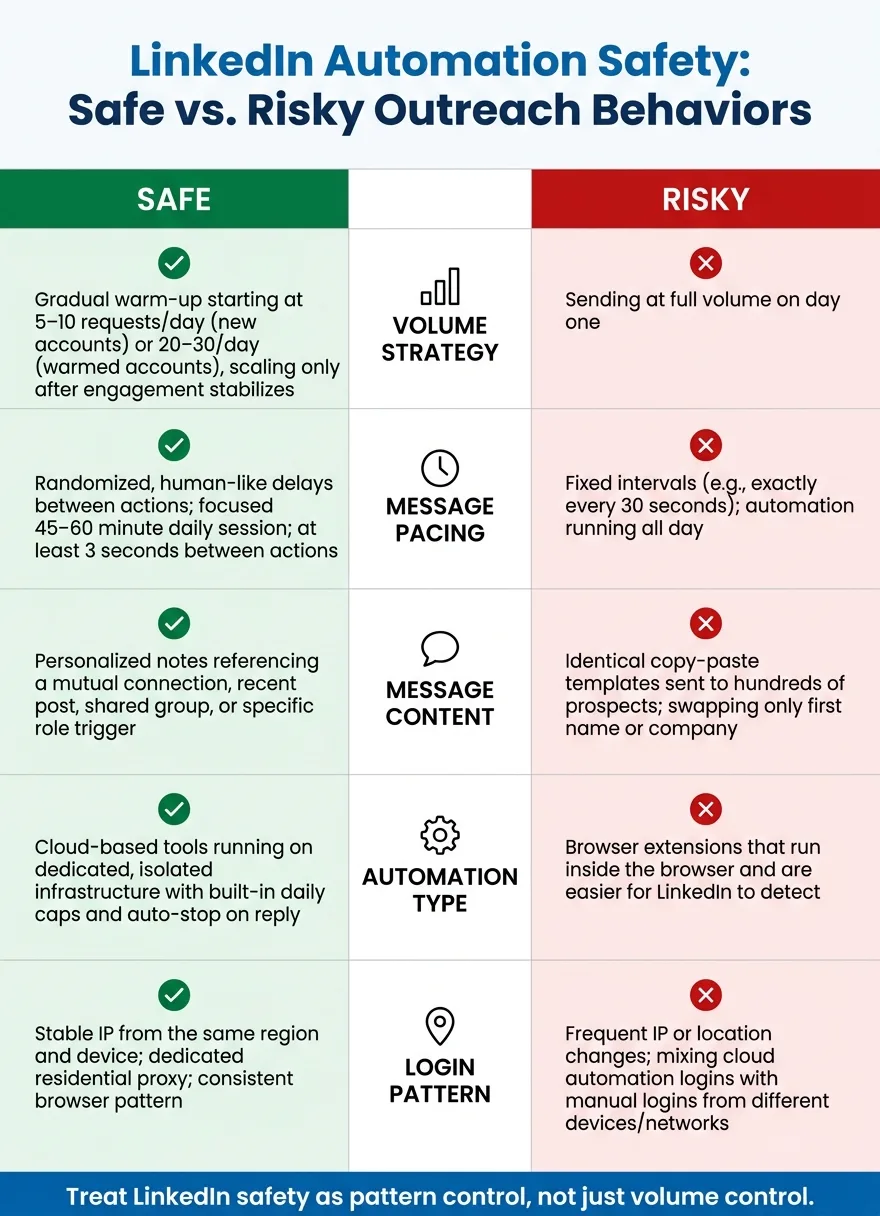
Use this table to audit the five highest-risk outreach signals: volume, timing, copy, tooling, and logins. Think of it as a quick preflight check before you restart a campaign or line up tools side by side.
| Behavior | Safe | Risky |
|---|---|---|
| Volume strategy | Gradual warm-up starting at 20–30 requests/day, scaling only after engagement stabilizes | Sending at full volume on day one |
| Message pacing | Randomized, human-like delays between actions | Fixed intervals (e.g., exactly every 30 seconds) |
| Message content | Personalized notes referencing a mutual connection, recent post, or specific role | Identical copy-paste templates sent to hundreds of prospects |
| Automation type | Cloud-based tools running on dedicated infrastructure | Browser extensions that run inside the browser and are easier to spot |
| Login pattern | A stable IP from the same location | Frequent IP or location changes that look suspicious |
These signals give you a fast way to judge whether your current tool stack lowers risk or makes problems more likely.
Tooling Notes: What to Look for in a Safer Automation Setup
Use the table above to check behavior. Use this section to check the stack behind it.
The main job of tooling is simple: enforce the safety rules above. If the setup can't do that on its own, you're asking people to catch mistakes by hand. That's a bad bet, especially when multiple sequences are running at the same time.
Focus on a few guardrails first:
- Built-in daily caps
- Randomized delays
- Business-hours scheduling
- Auto-stop on reply
Those first three help keep sending patterns from looking too aggressive. They matter even more when several campaigns are live at once. And auto-stop on reply is non-negotiable. If someone replies, the system should stop outreach to that person right away. No lag. No workarounds.
Infrastructure matters too. Use private, isolated infrastructure with dedicated campaign IPs, not shared pools. Shared pools can create problems you didn't cause. If another sender behaves badly, you can still deal with the fallout. That's like driving a clean car through someone else's mud and wondering why the tires are filthy.
If a tool can't enforce these controls, it doesn't lower risk. It adds it.
And one more thing: no tool makes aggressive volume or weak targeting safe.
Conclusion
LinkedIn action blocks usually come from a few common mistakes: too much volume, pacing that looks automated, weak personalization, low profile trust, and missed warning signs.
The fix is pretty simple. Warm up the account. Keep connection requests conservative. Pace activity like a real person. And when acceptance rates, replies, or warning signals start to shift, slow down or stop.
Protect the account first. Conversations come from steady, consistent delivery.
Frequently asked questions
How long should I warm up a LinkedIn account before using automation tools?+
You should spend about 4 weeks on manual activity before starting automation. Week 1 focuses on profile optimization with zero requests. Weeks 2-4 involve sending 5-10 manual, personalized connection requests daily along with commenting and following relevant accounts. This builds a normal activity pattern that LinkedIn recognizes as human behavior.
What is a safe daily limit for LinkedIn connection requests when using automation?+
For warmed accounts, cap connection requests at 20-30 per day. For new or recently warmed accounts, start much lower at 5-10 highly personalized requests per day for the first month. These numbers represent ceilings, not goals, and should be adjusted based on your account's trust level and acceptance rates.
Why are browser extensions riskier than cloud-based LinkedIn automation tools?+
Browser extensions run inside your browser where their clicks, timing, and movement patterns are easier for LinkedIn to detect. They often create uniform rhythms that don't match human behavior, while cloud-based tools with dedicated infrastructure can better mimic natural activity patterns. Extensions also leave plain browser signals that LinkedIn's hidden checks can catch.
What should I do immediately if I see a CAPTCHA or warning banner on LinkedIn?+
Stop all automation immediately when you see any friction signal like CAPTCHAs, warning banners, or sudden drops in acceptance rates. Review your setup including volume, IP consistency, warmup status, and follow-up timing. Once metrics normalize, restart at a lower volume rather than jumping back to the same pace that triggered the issue.
How does LinkedIn use acceptance rates and 'I don't know this person' flags to detect automation?+
LinkedIn tracks acceptance rates and 'I don't know this person' responses as key trust signals. Declining acceptance rates or increased 'I don't know' flags indicate weak targeting or automated behavior, which can trigger restrictions. These metrics often serve as early warning signs before LinkedIn imposes action blocks, so monitoring them helps you catch problems before they escalate.
What makes a connection request message less likely to be flagged as spam?+
Each request should reference a real trigger like a shared connection, mutual group, recent post, article, or company news. Use neutral greetings and avoid time-based openers. The message should feel one-to-one rather than mass-sent, which means segmenting your list into narrow groups based on role, industry, or trigger event before writing the template.
Why does inconsistent IP or login location increase the risk of a LinkedIn restriction?+
LinkedIn monitors where accounts log in from as part of its security checks. If your login location keeps changing or your account bounces between a cloud tool and home connection, it creates an uneven footprint that looks suspicious. Using dedicated residential proxies and maintaining consistent device patterns, browsers, and IP regions makes your activity appear more like normal human behavior.