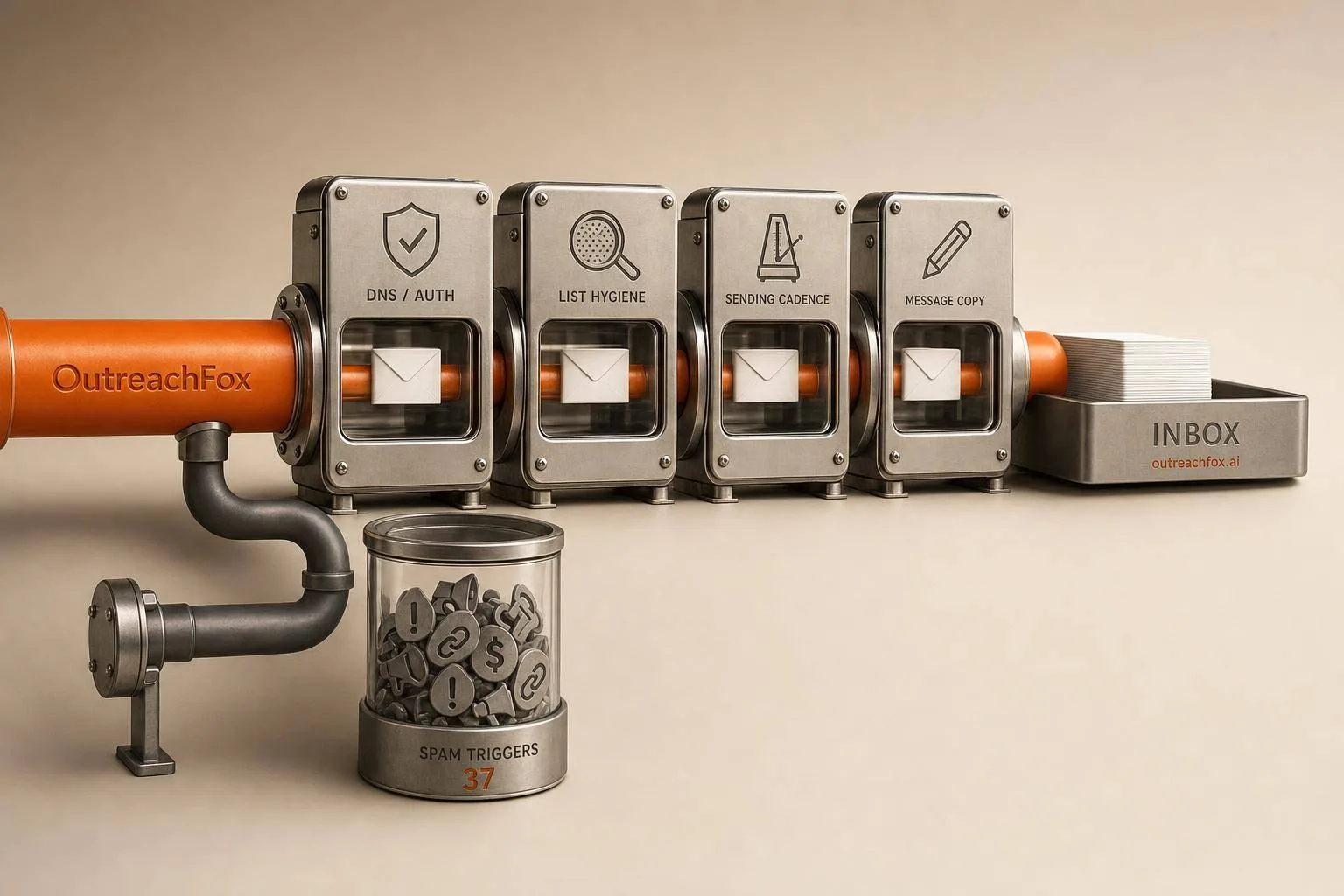
About 17% of cold emails miss the inbox due to authentication issues, list quality problems, sending pattern mistakes, and spam-triggering copy. Fix infrastructure first, then optimize content.
- Keep complaint rates under 0.1% and hard bounces under 2% to maintain sender reputation
- Warm up new mailboxes for 14–30 days before sending cold outreach at volume
- Set up SPF, DKIM, and DMARC correctly to pass authentication checks and avoid spam folders
- Send 30–50 emails per inbox daily from dedicated outreach domains, not main business domains
- Use plain text, minimal links, and conversational tone instead of promotional marketing language
- Monitor Google Postmaster Tools, bounce rates, and inbox placement before scaling campaigns
37 Cold Email Spam Triggers (And How to Avoid Each One)
A cold email can show as “delivered” and still miss the inbox. That’s the main point here. The article shows that about 17% of cold emails never reach the inbox, and average inbox placement sits near 87.6%. So if replies are low, the issue may not be your offer. It may be your setup, list, or sending pattern.
If I had to boil the whole piece down, I’d say this:
- Copy problems can hurt inbox placement, but they’re rarely the first thing to fix.
- DNS and mailbox setup - SPF, DKIM, DMARC, domain age, PTR, and sender alignment - set the floor for deliverability.
- List quality matters just as much. Hard bounces, spam traps, role accounts, and stale contacts can drag a domain down fast.
- Sending behavior matters too. New domains, sudden volume jumps, and sending too much from one inbox can trigger throttling.
- Monitoring is not optional. If you’re not checking Google Postmaster Tools, SNDS, bounce rates, complaints, and inbox placement, you’re flying blind.
In other words: inbox placement is a systems issue, not just a writing issue.
The article walks through 37 triggers across five groups:
- Copy and formatting
- Authentication and DNS
- Mailbox and domain setup
- Recipient data quality
- Sending volume and patterns
Here’s the short version of what to fix first:
| Area | What to check first | Risk signs |
|---|---|---|
| Setup | SPF, DKIM, DMARC, PTR, sender alignment | spf=fail, dkim=fail, “via” warning |
| Domain | Domain age, warmup, separation from main mail | New domain sending at full volume |
| List | Verification, role accounts, trap risk, stale contacts | >2% hard bounces, complaints >0.3% |
| Sending | Daily caps, spikes, throttling, consistency | Big week-over-week jumps, soft bounces |
| Content | Spammy tone, too many links, attachments, tracking | HTML-heavy emails, link overload, fake “Re:” |
What I like about the piece is that it doesn’t treat spam filters like a word blacklist. It shows how providers score your emails using a mix of:
- authentication
- reputation
- engagement
- structure
- behavior
So the fix is usually not “change one subject line.” It’s more like:
- fix the sending setup
- clean the list
- slow down volume
- strip down the email
- monitor results before scaling again
The article also makes one point very clear: cold outreach should live on its own domain or subdomain, not on the same setup you use for receipts, password resets, or day-to-day company mail. That separation helps protect your main brand if your outbound program runs into trouble.
If you want the shortest possible takeaway, it’s this:
- Keep complaints under 0.1%
- Keep hard bounces under 2%
- Warm up new mailboxes for 14–30 days
- Stay around 30–50 emails per inbox per day
- Use plain, short emails with few links and no first-touch attachments
- Check reputation and inbox placement before you scale
That’s the full article in plain English: fix infrastructure first, then fix copy.
5 Reasons Your Cold Emails Go to Spam | Day 07/30 Improving cold Outreach Skills
What Spam Filters Check Before Placing an Email
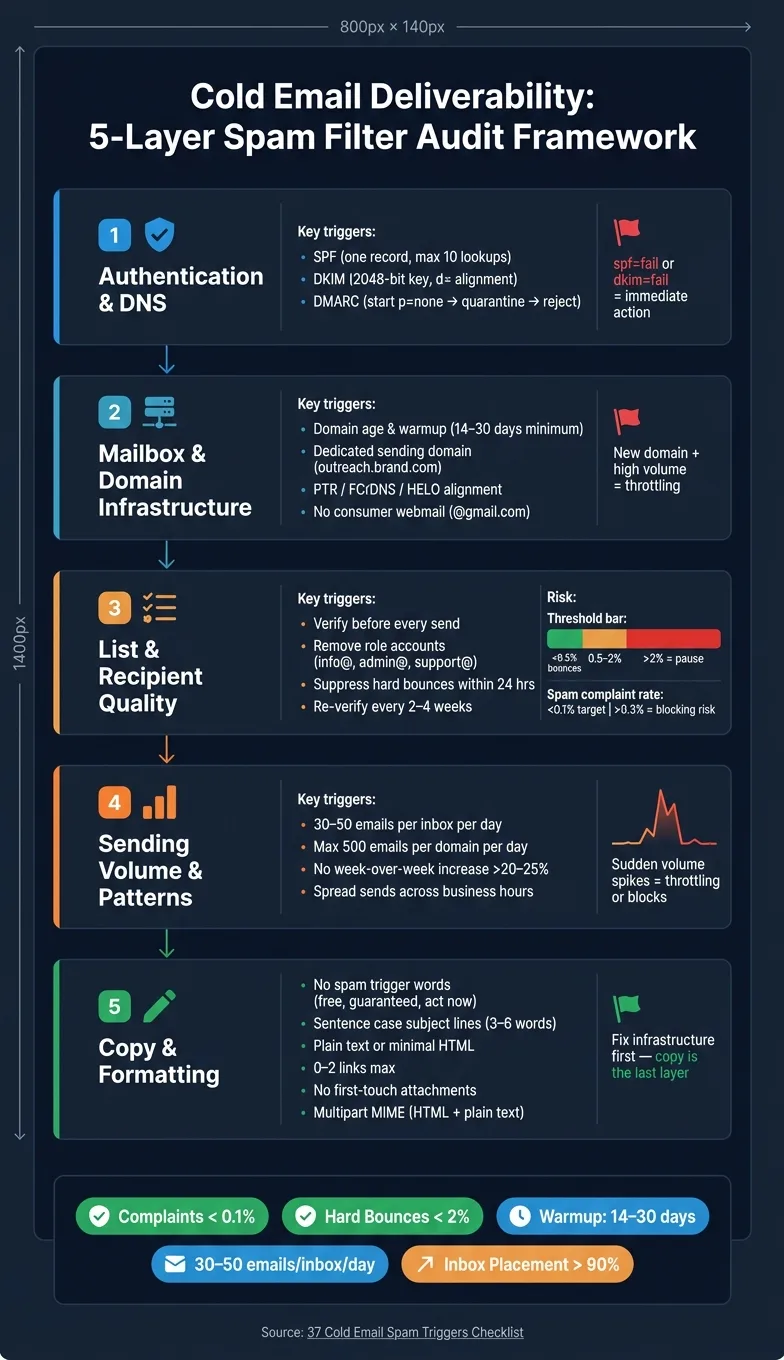
Spam filters score every cold email across five signal groups. That gives you a simple way to review the 37 triggers below without guessing.
The idea is straightforward: filters look at your setup, how you send, who you send to, and what the message looks like. If one part is weak, the rest of the campaign can still suffer.
The five groups are authentication and DNS, mailbox infrastructure, recipient data quality, sending patterns, and copy and formatting.
Here’s the filter map the checklist below follows.
| Signal Group | What Filters Check |
|---|---|
| Authentication & DNS | SPF, DKIM, DMARC alignment |
| Mailbox Infrastructure | Domain age, IP reputation, reverse DNS (PTR) records |
| Recipient Data Quality | Bounce rate, complaint rate, spam traps |
| Sending Patterns | Volume ramp-up, send pace, consistency |
| Copy & Formatting | Spam words, link count, HTML-to-text ratio |
A good way to think about it: infrastructure sets the ceiling. Content has to work inside that ceiling. Start with content signals, then move through authentication, infrastructure, and list quality.
1. Excessive Use of High-Risk Spam Words
Spam filters often flag words like "free", "guaranteed", and "act now." Not because those words are banned, but because they show up in spam all the time. That pushes up your spam score and makes your email look more like mass marketing than normal business outreach.
The fix is pretty simple: replace salesy language with wording that sounds specific and conversational. Run your template through mail-tester.com before you send it, then use the report to spot terms that trigger filters and clean them up.
| Element | Spam Pattern | Safer Alternative |
|---|---|---|
| Subject line | "URGENT: Increase revenue 300% GUARANTEED" | "Quick question about [Company]'s outbound process" |
| CTA | "Click here now - limited time offer!" | "Would Tuesday or Wednesday work for a 20-minute call?" |
| Value prop | "Our industry-leading solution transforms..." | "We help [niche] teams book more meetings through..." |
After that, look at the subject line itself. It may be the part causing trouble.
2. Misleading or Manipulative Subject Lines
Spam filters flag subject lines that don't match the email body. If the subject line promises one thing and the message delivers something else, you're asking for trouble. Even a small bump in complaints can knock future emails out of the inbox.
Most subject-line problems land in three buckets: fake urgency like "Act now" or "Last chance", false claims like "100% guaranteed" or "Double your revenue", and fake reply threading by using "Re:" or "Fwd:" when no earlier exchange exists. That last one is a big red flag. If there wasn't an actual thread, it looks like a bait-and-switch move, and filters are good at spotting it.
Before you send, test the email across major inboxes. You can also use mail-tester.com to see which rules your subject line may be tripping.
The fix is simple. Write subject lines in lowercase or sentence case, keep them to 3–6 words, and make sure they match what's inside the email. Bait-and-switch subject lines drive complaints and teach filters to distrust later sends.
| Category | Flagged Pattern | Clean Alternative |
|---|---|---|
| Urgency | "Act now - Limited time" | "Question regarding [Project]" |
| False claims | "100% Guaranteed results" | "Ideas for [Company]'s pipeline" |
| Fake reply threading | "Re: [Previous Conversation]" (none exists) | "Introduction: [Your Name] × [Their Name]" |
One more thing: don't stack merge tags in the subject line. Use one real, verifiable detail instead, like a recent hire, funding round, or press mention. It helps the message look genuine to both filters and recipients.
Next, watch the visual signals that make a message look automated or aggressive.
3. All Caps and Aggressive Punctuation
Spam filters look at patterns, not just specific words. ALL CAPS and stacked punctuation like !!? are old-school spam signs. One capitalized word usually isn't a big deal. But repeated caps and heavy punctuation can trip filters fast, especially in the subject line.
This kind of formatting can also push up complaint rates. And over time, that can hurt your domain reputation.
Before you send, run the template through a deliverability checker. Then clean up any capitalization or punctuation issues it flags.
The fix is simple: use sentence case throughout, stick to one exclamation point per email, and never mix ! and ? in the same CTA. Here’s what that looks like in practice:
| Element | Spam Pattern | Clean Alternative |
|---|---|---|
| Subject line | "FREE AUDIT FOR YOUR TEAM" | "Free audit for your team" |
| Punctuation | "Ready to 3x your revenue!!?" | "Are you open to discussing your revenue goals?" |
| CTA | "CLICK HERE NOW!" | "Would Tuesday or Wednesday work for a 20-minute call?" |
Next, watch for copy that sounds promotional even when the formatting is clean.
4. Overly Promotional or Salesy Tone
After caps and punctuation, tone is the next thing filters pick up on. Spam filters don’t just look for certain words. They also score structure, phrasing, and the overall feel of the message. Gmail and Outlook use machine learning to spot patterns that look like mass marketing copy, even when none of the words are on a blocklist.
The bigger problem isn’t always landing in spam. Sometimes an email makes it to the inbox just fine, but still sounds like a late-night infomercial. When that happens, the recipient may mark it as spam by hand. That complaint signal goes straight to your domain reputation, and it adds up over time.
Run the draft through your deliverability checker before sending.
The fix is simple: shift the tone. Write peer-to-peer, not marketer-to-prospect. Write like a person reaching out to another person, not a promo blast. Keep the first email short - ideally 50–80 words. Plain text usually feels less promotional. And that sales-heavy vibe often shows up in the layout too, not just the copy.
Use these examples to remove marketing language without making the email sound stiff.
| Element | Sales-Heavy (Avoid) | Conversational (Use) |
|---|---|---|
| Opening | "We help teams like yours..." | "Saw your Series A announcement..." |
| Value prop | "Our industry-leading solution transforms..." | "We help [niche] build pipeline through..." |
| CTA | "Click here to book a demo now!" | "Would Tuesday or Wednesday work for a chat?" |
| Word choice | "Free", "Urgent", "Cash" | "Included", "No cost", "Thoughts?" |
5. Low Text-to-Image Ratio
After tone, the next signal is visual layout. And yes, layout affects spam scoring too, not just the words on the page.
Spam filters look at how much of your email is text versus images. When an email leans too hard on graphics, filters tend to treat it as higher risk. That’s because spam messages often hide text inside images. So if your email is image-heavy, it has a better chance of missing the inbox.
The safe move is simple: keep images to a minimum and only use them when they add clear value. If you include an image, add descriptive alt text so the message still makes sense if the image doesn’t load.
For a first-touch email, keep the signature text-only:
- Name
- Title
- Phone number
- One URL
A good gut check is to test the email with images turned off. If it becomes hard to read, it depends too much on graphics. If the message still works with images disabled, the layout is in good shape.
The safest fix is usually to remove images or use as few as possible. If you need one, send the email with both plain-text and HTML versions included.
Next, check how links and tracking parameters add risk.
6. Excessive Links and Tracking Parameters
After layout, links are one of the easiest things filters score. And they carry a lot of risk.
If an email has more than 3 unique links, spam risk tends to jump fast. For first-touch outreach, keep it tight: aim for 0–2 links total. In many cases, one of those should be your unsubscribe link.
A few link choices can also make a message look shady at a glance. URL shorteners, anchor text that doesn't match the destination, default ESP tracking domains, and long URLs packed with parameters can all trip filters.
Before you send, test the message in mail-tester.com or GlockApps.
Fix links in this order:
- Cut links down to 0–1 total
- Use a custom branded tracking domain
- Avoid shorteners and mismatched anchor text
| Link Element | High-Risk Pattern | Safer Alternative |
|---|---|---|
| URL type | Shorteners (bit.ly, TinyURL) | Full URLs or branded redirects |
| Link count | 3+ unique links per email | 1 CTA link + 1 unsubscribe link |
| Tracking domain | Default ESP tracking domain | Custom branded tracking domain (CNAME) |
| Anchor text | "Click here" or mismatched URLs | Descriptive text matching the destination |
| Parameters | Long, parameter-heavy tracking URLs | Minimal, essential parameters only |
Attachments can push risk up even faster.
7. Large or Multiple Attachments in Cold Emails
Attachments can get your email in trouble fast. If links already make filters cautious, attachments make them even more cautious. In a first-touch cold email, an unexpected file is one of the clearest signs of phishing or malware, so inbox filters often react hard before you've built any engagement with the recipient.
The fix is simple: test the draft and strip out every attachment from the first email. Run it through mail-tester.com before sending, then check the report to see what gets flagged.
For first-touch emails, remove all attachments and link to hosted assets instead. If you want to share a case study, one-pager, or deck, send a link to a version hosted on your site or Google Drive. Then send the file itself after they reply.
| Attachment Type | Risk Level | Why Filters Flag It |
|---|---|---|
| PDFs | High | Common malware vector; triggers structural spam signals |
| Multiple attachments | High | Resembles mass marketing or phishing attempts |
| Embedded images | Medium-High | Adds weight and can make a first-touch email look promotional |
| Image-only emails | Critical | Instant fail for many Bayesian and ML-based filters |
8. Generic Templates Reused at Scale
Even solid sending setup can fall apart when every email looks like the same template.
Modern filters like Gmail and Outlook use machine learning and Bayesian scoring to spot the structural fingerprints of automated outreach. They look for things like repeated sentence patterns, generic value props, and transitions that feel stiff or unnatural.
Dropping in {{FirstName}} and {{Company}} doesn't count as personalization. That's just token replacement. Filters can spot token-only templates, and people can too. If that same template keeps getting deleted, ignored, or marked as spam, that poor engagement can hurt future sends built from the same structure. Sending the same copy from multiple mailboxes to the same domain can also set off pattern detection.
A simple audit works well here: remove the merge fields and read the raw copy. If the message could still go to almost any company, it's too generic. Also watch for formula-style wording and sentence patterns that march along in the exact same rhythm.
The better move is to add 2–3 lines of specific, verifiable context for each prospect or segment. That could be a recent hire, a product launch, or another recent company event. At scale, use controlled copy variants so each send doesn't follow the exact same structure.
| Content Element | Template Red Flag | Deliverability-Safe Fix |
|---|---|---|
| Opening line | Generic opener | Specific prospect context or recent event |
| Personalization | {{FirstName}} and {{Company}} only | 2–3 context-specific lines |
| Language | "Industry-leading solution" | Direct, conversational language |
| Format | Heavy HTML or identical layout | Plain text or minimal HTML |
| Length | 5+ paragraphs / wall of text | 3–4 sentences; under 120 words |
| Copy variation | Identical across all sends | Controlled copy variants |
Once the copy pattern is cleaned up, the next risk is formatting structure.
9. Unbalanced HTML and Formatting
Even clean copy can miss the inbox if the HTML looks automated or misleading. Spam filters don’t just read the words on the page. They also inspect the code behind the email. And when that code is messy or overbuilt, it can trip spam rules fast, even if the message looks normal in your own inbox.
The usual trouble spots are embedded CSS, hidden text, white-on-white copy, and tiny fonts. Then there’s heavy formatting: colored backgrounds, tables, and image-loaded signatures packed with social icons and logos. That kind of setup can make a simple one-to-one outreach email look more like a promo blast. Mail clients often treat hidden elements and busy HTML as a spam signal, especially in Outlook.
Before you send, run a test with Mail-Tester.com and aim for at least 9.5/10. Then check the SpamAssassin report to see the exact HTML rule behind any point loss.
The fix is pretty simple. Remove embedded CSS. Use inline CSS only when formatting is actually needed. Swap image-heavy signatures for plain text: name, title, phone number, and one URL. Keep images to a minimum, and only use them when they help the message. Skip signatures loaded with links or mini navigation menus. If your email still reads cleanly as plain prose when images are off, you’re in a good spot.
Once the markup is cleaned up, authentication is the next deliverability check.
| HTML Element | Spam Pattern | Clean Alternative |
|---|---|---|
| CSS | Embedded or external stylesheets | Inline CSS only |
| Hidden content | White-on-white text, hidden divs, fonts under 4 px | None - remove entirely |
| Signature | Logos, social icons, multiple images | Plain text: name, title, phone, one URL |
| MIME type | HTML-only message | Multipart MIME (HTML + plain text) |
10. Missing Plain-Text Version
Once you fix the HTML, check that the email also has a plain-text version. Cold emails should never be HTML-only. If the plain-text part is missing, the message can look automated and hurt deliverability.
The safe setup is a multipart message with both versions included, so filters can read the full email the way they expect to.
Here’s the simplest way to check it: send a test email to your own Gmail account, open it, click the three-dot menu, and choose "Show original." Then search the raw source for Content-Type: text/plain or Content-Type: multipart/alternative. If you can’t find either one, the plain-text version is missing.
You can also use Mail-Tester.com as a backup check. Send a test to the address it gives you, then review the report for missing MIME parts.
The fix is simple. Most sending tools create a plain-text version on their own, but you still need to make sure that setting is turned on in your sequence settings. If your platform lets you edit it by hand, remove the HTML and keep the text version plain: 3–4 short sentences. Stick to 1–2 links total, including the unsubscribe link.
| Check Method | How to Do It | What to Look For |
|---|---|---|
| Gmail "Show Original" | Open email → ⋮ menu → Show original | Content-Type: text/plain and multipart/alternative in raw headers |
| Mail-Tester.com | Send test to unique address provided | Missing MIME parts flagged in the report |
| ESP Settings | Open sequence editor → Plain Text tab | Confirm plain-text version exists and matches copy |
If both versions are present, check SPF next.
11. Broken or Misaligned SPF Records
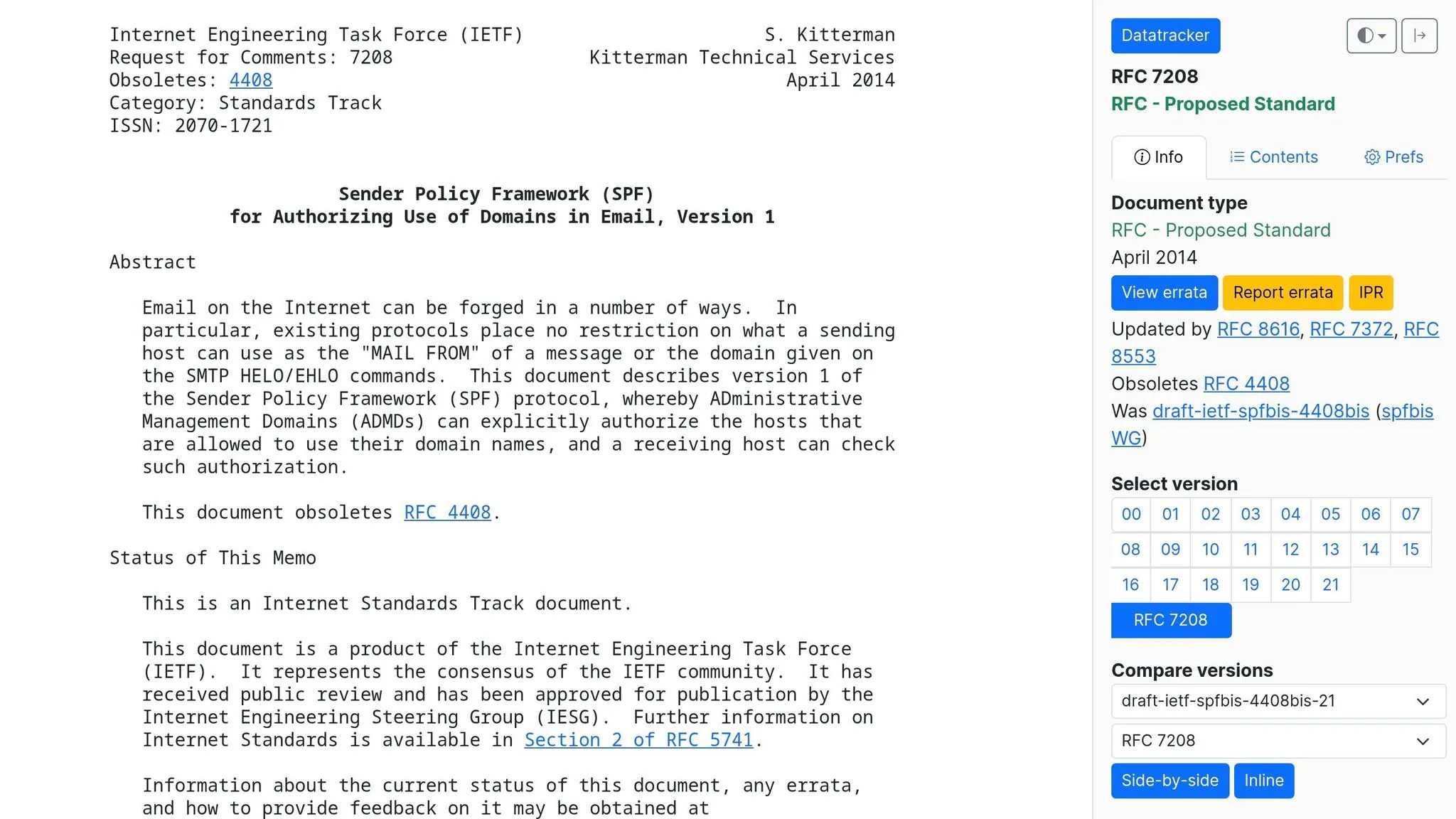
Once MIME is set up right, SPF is the next DNS check that affects inbox placement. SPF (Sender Policy Framework) is a DNS TXT record that tells receiving mail servers which IP addresses can send email for your domain. If it’s broken or set up wrong, spam filters may treat your message like it came from an unauthorized source, even when the email itself looks fine.
The most common SPF problems are duplicate records, too many DNS lookups, and envelope-sender misalignment. You should publish one SPF TXT record only. If you have more than one, that causes a permanent error (permerror). Too many include: lookups can do the same thing. SPF allows 10 DNS lookups max.
Misalignment is the sneaky one. SPF checks the envelope sender (MAIL FROM or return-path domain), not the visible From address. If those domains don’t match, DMARC can fail even if SPF passes. That catches a lot of people off guard.
Check SPF in MXToolbox, then look at the message headers and confirm you see spf=pass. If the headers show spf=fail, fix the record before you send again.
The right fix depends on what went wrong:
- If you use more than one sender, merge them into a single record, such as
v=spf1 include:... include:... ~all - If you’re over the lookup limit, flatten the record or remove services you no longer use
- After DNS changes, wait up to 24 hours before sending at volume
| SPF Error | What Happens | Fix |
|---|---|---|
| Multiple SPF records | Immediate permerror; authentication fails | Merge all directives into one TXT record |
| >10 DNS lookups | permerror; email treated as unauthenticated | Flatten the record or remove unused services |
Misaligned MAIL FROM | DMARC fails despite SPF pass | Match the envelope sender domain to the visible From domain |
| Missing ESP include | SPF fails when sending via an outreach platform | Add the platform's include: mechanism to your record |
One more thing: subdomains do not inherit the parent SPF record. If you send from mail.yourdomain.com, that subdomain needs its own SPF setup.
12. Missing or Invalid DKIM Signatures
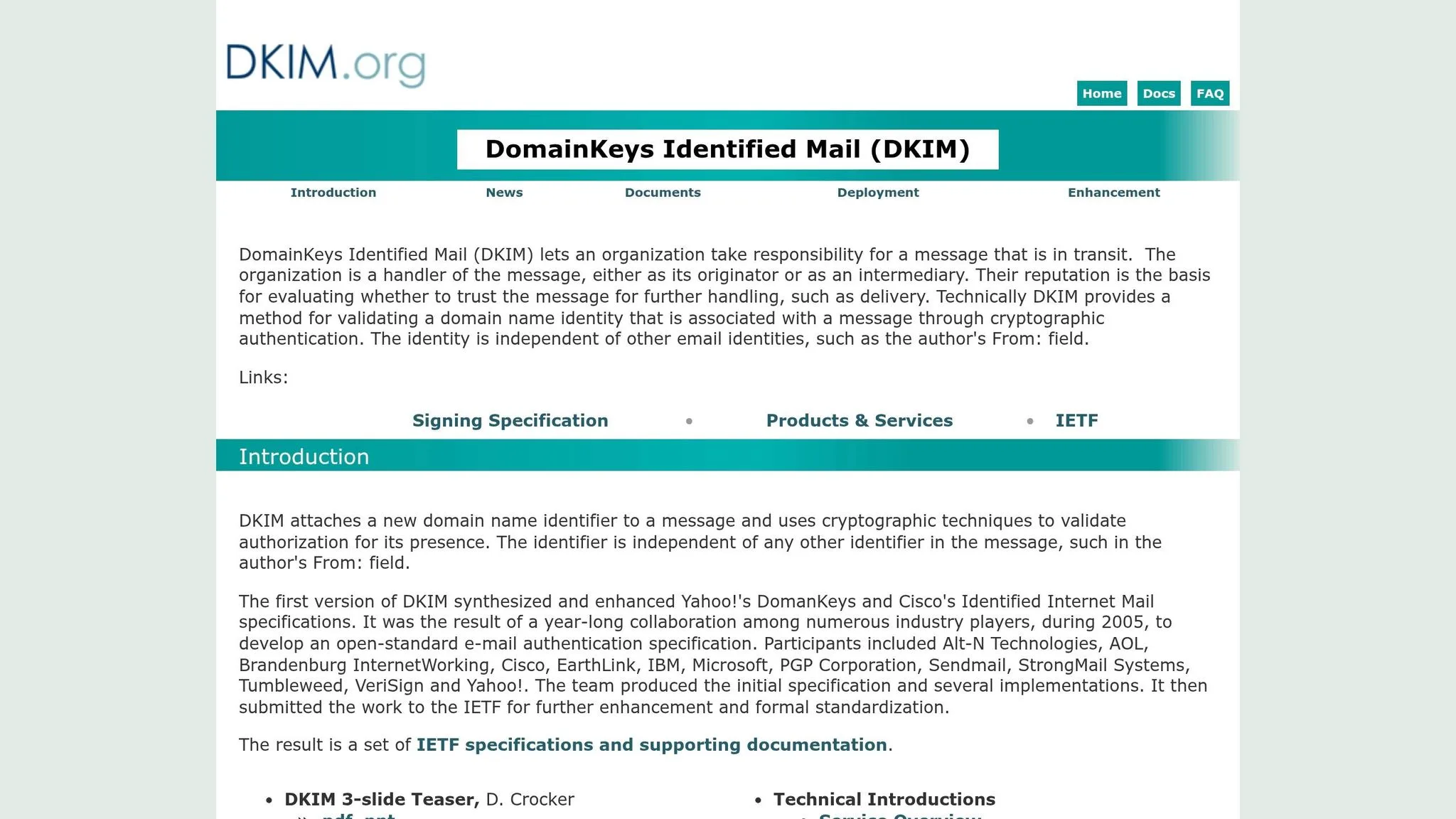
After SPF, DKIM is the next check that matters. If DKIM is broken, your email can look unverified, and that can push more of your mail into spam. DKIM adds a cryptographic signature to each outgoing message so the receiving server can confirm the message wasn't changed in transit. Major providers now treat broken DKIM as a serious deliverability issue, especially for high-volume senders.
To check it in Gmail, open Show original and look for dkim=pass in the Authentication-Results header. If you see dkim=fail or no DKIM entry at all, fix that before your next send. You can also run a DKIM lookup in MXToolbox to make sure the selector resolves in DNS.
One of the most common problems shows up after a migration: the selector no longer matches. Another issue is older 1024-bit keys, which should be replaced with 2048-bit keys. You also need the DKIM d= domain to match your visible From domain. If those don't line up, DMARC can fail even if DKIM passes. And if you're sending from subdomains, each one needs its own DKIM records. After any DNS change, give propagation time to finish before sending at volume.
The fix is pretty simple: use the right selector, publish the DKIM record, and sign with a 2048-bit key.
| DKIM Error | Symptom | Fix |
|---|---|---|
| Key not published in DNS | dkim=fail (no key for signature) in headers | Publish the public key TXT record at the selector DNS record |
| Selector mismatch after migration | Platform signs with a non-resolving selector | Confirm the DNS record matches the selector your sending platform currently uses |
| 1024-bit key | Weak signature soft-flagged by enterprise filters | Rotate to a 2048-bit key in your ESP settings |
| Alignment failure | DMARC fails despite DKIM passing | Ensure the d= tag in the signature matches the RFC5322 From domain |
If DKIM passes but inbox placement still drops, the next thing to check is DMARC alignment and policy.
13. Absent or Misconfigured DMARC Policies
After SPF and DKIM, DMARC decides how receiving servers handle failures.
Plainly put: DMARC tells mailbox providers what to do when SPF or DKIM fails. If you don’t have DMARC set up, some receiving servers may treat your email as unauthenticated. And that can hurt deliverability fast.
Major providers now expect DMARC from high-volume senders. If your mail authentication is weak, your messages can get rejected or pushed into spam.
You can check DMARC in two simple ways:
- Run a lookup with MXToolbox DMARC Lookup
- Open Show original in Gmail and search for
dmarc=passin theAuthentication-Resultsheader
Add this DNS record:
_dmarc.yourdomain.com → v=DMARC1; p=none; rua=mailto:dmarc@yourdomain.com
Start with p=none so you can monitor reports without affecting delivery. After 2–4 weeks of clean reports, move to p=quarantine, then later to p=reject.
Keep rua= turned on so you keep getting aggregate reports.
If you send mail from subdomains like outreach.yourdomain.com, check those too. They do not pick up the root policy on their own.
| DMARC Policy | What Happens to Failing Mail | When to Use It |
|---|---|---|
p=none | Delivered normally; no action taken | Initial monitoring |
p=quarantine | Sent to spam/junk folder | After all sources pass SPF and DKIM |
p=reject | Blocked entirely; not delivered | Final stage for maximum trust |
If third-party tools send on your behalf, use relaxed alignment: aspf=r and adkim=r.
Once DMARC is passing, the next risk is sending too much from a new domain too fast.
14. Brand-New Domains Sending High Volume Right Away
After authentication clears, the next hurdle is domain age. A brand-new domain has little to no reputation history. So if you go from zero to hundreds of emails almost overnight, mailbox providers see that domain as unproven and start throttling sends.
How to check: Look at your send logs from the last 7–14 days. If volume jumped at the same time open rates fell, that spike is likely the issue. Google Postmaster Tools may also show little or no data yet. That usually means the domain is still too new for a clear read.
The fix: Pause cold outbound right away. Then run automated warmup for 21–30 days before sending any cold email. In week one, start with 10–20 emails per day. After that, increase by no more than 10–15% per week. Once warmup is done, keep volume capped at 50 cold emails per inbox per day and 500 per domain per day.
Use a dedicated subdomain like outreach.yourbrand.com for cold outreach instead of your main business domain. If warmup goes off the rails, your primary domain stays protected.
15. Sending from Consumer Webmail for B2B Outreach
A dedicated domain matters. But it only does its job if the mailbox is business-grade too.
If you send cold B2B outreach from a @gmail.com or @yahoo.com address, you hurt both deliverability and trust. Spam filters look at the "From" header right away. A consumer domain can increase your risk score before anyone even reads the subject line.
There’s also the human side of it. Most recipients see a free email address as less trustworthy. On top of that, consumer webmail gives you less control over authentication and sender reputation, which can make outreach harder than it needs to be.
How to check: Send a test email to Gmail or Outlook. If the sender appears with "via" or "on behalf of", your alignment is broken.
The fix: Use a branded domain such as getcompany.com, set up a business mailbox, and warm it before you start cold sending. The next risk is using that same domain for outreach and other mail at the same time.
16. Mixing Transactional and Cold Outbound on One Domain
This is a reputation separation issue, not a copy issue.
Your main domain carries your customer-facing reputation. It also supports the emails customers NEED to get, like account notices, receipts, password resets, and other service messages. If you send cold outreach from that same domain, you put those emails in a bad spot.
Mailbox providers score the domain as a whole. When you mix transactional mail with cold outbound, you blur that reputation. The result is mixed signals.
Here’s the problem in plain English:
- Transactional mail usually gets better engagement
- Cold outreach usually gets lower engagement
- Cold outreach also tends to get more complaints
So even if your transactional mail is in good shape, the cold outbound traffic can drag down trust for the domain overall.
Start by checking shared sender history. Then look at DNS ownership. Open Google Postmaster Tools and review your domain reputation. If it shows Medium or Low while your transactional mail metrics still look healthy, mixed traffic is a likely reason.
You can also run dig TXT yourdomain.com to check whether the same domain is being used for both types of sending.
The fix: move cold outreach to a dedicated subdomain. If you want stronger separation, use a secondary domain such as getcompany.com or company-sales.com.
A separate domain gives you a separate reputation history. If you use a subdomain, set it up on its own and publish separate SPF, DKIM, and DMARC records.
17. Ignoring Daily Provider Sending Limits
Most senders know sending limits exist. But a lot of them ignore what those limits look like for cold email.
Here’s the key point: provider maximums are not safe cold-email limits. If you send anywhere close to those upper caps with cold outreach, you can get throttled or blocked fast. A safer range is 30–50 emails per inbox per day, with no more than 500 emails per day from one domain across all inboxes. And even if your daily volume seems low, a sudden jump can still set off throttling.
That’s what makes this tricky. Throttling often looks like nothing happened at all. You may see fewer replies and lower inbox placement, but no big bounce spike. Why? Because filters don’t just look at raw volume. They also look at behavior. If you blast a big batch at 9:00 a.m., that can look like spammer activity. If you spread sends across working hours, it looks more like a real person doing their job.
To check for warning signs, use the provider tools:
- In Google Postmaster Tools, look at the Domain Reputation panel. If it drops from High to Medium after a send increase, that’s a strong sign of throttling.
- For Microsoft, check SNDS for a Yellow or Red status on your sending IPs.
Once you stay under the cap, the next step is to spread volume in a safe way. Scale horizontally by adding warmed inboxes instead of pushing one inbox harder. Send during the recipient’s business hours, and keep per-inbox volume steady.
Staying under the daily cap helps, but it doesn’t protect you from the next problem: a sudden spike in send volume.
18. Sudden Spikes in Send Volume
Staying under your daily cap helps, but it doesn't tell the whole story. The pattern of your sending matters too. Mailbox providers look at how fast your volume shifts over time. They build statistical models around what looks normal for each IP and domain, so a sharp jump from one week to the next can look suspicious. That can lead to throttling or outright blocks.
A simple way to catch this early is to compare your send volume week over week.
Pull 30 days of send data and flag any week-over-week increase above 20%–25%. Then line up that same time period with Google Postmaster Tools. If your domain reputation dropped from High to Medium or Low at the same time, there's a good chance the volume spike caused it.
When that happens, cut volume first. If the spike was big, pause sending for a bit, then bring volume back up slowly.
| Signal | Threshold for Risk | Fix |
|---|---|---|
| Week-over-week increase | >20–25% | Reduce to previous week's volume; ramp back up 10–20% every 2–3 days |
| Daily volume per inbox | >50 emails | Cap at 30–40 emails per day |
| Daily volume per domain | >500 emails | Register and warm up additional sending domains |
| Idle period | >30 days | Restart at 20–30% of prior peak volume |
| Sudden volume jump | 5x in a day | Pause immediately; reduce volume by 80% for 7 days |
Think of it like turning up the water pressure in an old pipe. A small increase is usually fine. A sudden blast is where things start to break.
19. High Hard Bounce Rates
Big send-volume spikes can hurt your sender reputation. Invalid email addresses can do the same.
A hard bounce means the address is invalid or can't be reached. And if you keep sending to bad addresses, your domain reputation starts to slide.
Here’s how to read the risk levels:
- Under 0.5%: healthy
- 0.5%–2.0%: warning
- Above 2%: reputation risk starts to climb
- Above 5%: critical, with blocklisting risk climbing fast
The fix is pretty simple, but you need to act fast. Verify your lists before you send. Then suppress every hard bounce within 24 hours. If bounce rates get too high, pause sending, cut volume hard, and only start again after reputation recovers to "Medium" or better in Postmaster Tools.
Track these bounce-rate bands:
| Bounce Rate | Action |
|---|---|
| < 0.5% | Maintain current list hygiene cadence |
| 0.5%–2.0% | Re-verify list; tighten suppression rules |
| > 2.0% | Pause sending; audit and re-verify entire list |
| > 5.0% | Stop all sends; full domain reputation recovery required |
If hard bounces stay low but delivery still drops, the next problem to check is soft bounces and throttling.
20. Persistent Soft Bounces and Throttling
After hard bounces, the next red flag is a soft bounce that keeps happening. A soft bounce is a temporary 4xx rejection. When those rejections repeat, the issue usually isn't random. More often, the mailbox provider is throttling your mail, or your sending pattern looks risky.
Throttling tends to show up in a few clear ways: slower delivery, lower acceptance rates, and delayed inbox placement. It's not a full block. It's more like a warning shot.
The fastest check is to review Google Postmaster Tools and Microsoft SNDS. In Google Postmaster, a Domain Reputation rating of "Low" or "Bad" is a clear warning. In SNDS, a "Yellow" or "Red" status points to filtering or reputation trouble. It also helps to inspect the raw headers on a test message and look for temporary 4xx error codes.
If throttling is active, reduce sending volume by 80% for 7 days and send only to recent openers. Then fix the root issue before scaling back up. After that, restart at 30–40 emails per inbox per day and increase by no more than 10%–15% per week. If your Google Postmaster reputation drops from "High" to "Medium," stop scaling for 14 days. Spread sends across business hours so you don't create sudden bursts.
21. Poor List Hygiene and Outdated Contacts
If your bounce rate is climbing, list decay is usually the reason.
B2B lists decay by 22%–28% per year. And a list that's only six months old can already have 10%–15% bad addresses. That stale data hurts inbox placement fast. Why? Because sending to old contacts leads to hard bounces, spam trap hits, and no engagement at all. Those are all signals that can drag down your domain reputation.
A hard bounce rate above 2% is a red flag for poor list quality and can damage your reputation in a hurry. Hit a spam trap, and you may end up blocklisted. That's why verification and suppression should happen before you send, not after the damage is done.
High bounce rates usually point to a stale list, an unverified list, or both. Start by checking bounce rate in your sequencing tool.
The fix is pretty simple:
- Verify every list before import
- Send only to verified addresses
- Remove invalid and risky records
- Drop role accounts before upload, including
info@,admin@, andsupport@ - Treat catch-alls as high risk and use them sparingly
- Re-verify every 2–4 weeks
- Keep one global suppression list for hard bounces, unsubscribes, and complaints
Role accounts deserve special attention. They tend to drive more complaints and are often blocked by corporate filters anyway.
You should also suppress contacts after 90 days of no opens or 6 straight no-opens.
| Signal | Healthy Target | Stop Sending |
|---|---|---|
| Hard Bounce Rate | < 0.5% | > 2.0% |
| Spam Complaint Rate | < 0.1% | > 0.3% |
| List Age (since verification) | < 30 days | > 6 months |
| Inactive Contacts | < 90 days no opens | 6+ consecutive no-opens |
Once the list is clean, the next problem is poor recipient targeting.
22. Emailing Role Accounts and Generic Inboxes
Role accounts like info@, sales@, admin@, support@, and team@ aren't tied to one person. They're shared inboxes. And that makes them a poor fit for cold outreach.
Here's the issue: these inboxes tend to send weaker engagement signals and trigger more complaints than emails sent to named contacts. One complaint can damage sender reputation across the whole organization. On top of that, some corporate filters block or push down cold emails sent to shared inboxes.
That’s why role accounts should be filtered out before import. You can do that with a verification tool like ZeroBounce or NeverBounce. If you're trying to reach a department rather than one person, keep that traffic on a separate sending subdomain. That way, any reputation damage stays away from your primary domain.
| Role Account Type | Common Examples | Primary Risk |
|---|---|---|
| General Inquiry / Departmental | info@, contact@, sales@, support@ | Shared inbox; high complaint risk, low engagement |
| Administrative | admin@, webmaster@, postmaster@ | Frequently flagged by security filters |
| Team-based | team@, dev@, jobs@ | Low engagement; often blocked |
Send to a named contact first. Use role accounts only when the department is the actual target. After removing role accounts, check the rest of the list for seeded spam traps.
23. Hitting Seeded Spam Traps
After you clean up role accounts, the next hidden list risk is spam traps.
Spam traps are email addresses used by anti-spam groups to catch senders with weak list hygiene. There are two main types:
- Pristine traps were never real inboxes
- Recycled traps used to belong to real people, then later turned into traps
That difference matters. One pristine trap hit can get you blocklisted fast. Recycled traps usually point to poor list maintenance and can hurt your reputation at both the domain and IP level. Microsoft is known to be especially aggressive here.
The fallout can be rough. If your reputation drops, or SNDS shifts to yellow or red, check your list sources right away. Review Microsoft SNDS for your sending IPs and use MXToolbox to look for Spamhaus ZEN or SORBS listings. A yellow or red SNDS rating, or an active blacklist listing, is a strong sign that spam traps may be involved.
Fixing it starts with where your contacts came from. Purchased or scraped lists carry the most risk. Verify every imported list for trap risk before you send. Then re-verify your current lists every 30 days.
If trap hits seem likely, pause sending for 7–14 days. When you start again, send at only 20%–30% of your earlier volume and limit sends to recently engaged contacts. Also suppress long-inactive contacts to lower recycled trap risk over time.
24. No Opt-Out or Unsubscribe Option
When people can't opt out without a hassle, they often hit spam instead. And that can hurt deliverability fast.
This isn't just about being polite. Unsubscribe handling is a deliverability signal. If complaint rates go above 0.3%, providers may start taking action. That's why the fix goes beyond adding a link at the bottom of the email.
The headers matter too. Gmail and Yahoo look for List-Unsubscribe headers, including one-click unsubscribe. If those headers are missing, your message can look like bulk email even when the copy feels like a one-to-one note.
You can check this in Gmail pretty easily:
- Open a test message
- Click Show original
- Look for
List-Unsubscribein the raw headers
To clean this up, make sure you:
- Add one-click unsubscribe headers
- Show a visible unsubscribe link
- Process opt-out requests within 24 hours and send them to a global suppression list
That last part matters more than people think. Fast suppression cuts repeat complaints and helps protect your sender reputation.
Once unsubscribe handling is fixed, the next issue is what people do after they open.
25. Low Engagement and Negative Signals
Spam filters don't stop working after delivery. Gmail and Outlook keep watching what people do with your emails after they land in the inbox.
They track signals like opens, replies, deletes without reading, and whether someone pulls a message out of spam. If those signals keep going in the wrong direction, your sender reputation drops. Then more of your mail starts landing in spam. It's a nasty cycle.
Treat engagement like a reputation signal, not just a copywriting metric. Complaint rate, reply rate, and opens help you spot risk early. On a verified list, open rates below 25% usually point to deliverability trouble.
How to check it fast: Open Google Postmaster Tools and review the "Domain Reputation" and "Spam Rate" panels. If reputation shows "Low" or "Bad," engagement decay is often behind it. For Microsoft, check SNDS for yellow or red status flags. Then run a seed test to see inbox vs. spam placement.
If engagement falls, don't keep pushing volume and hope it fixes itself. Pause scaling and reset sender behavior first. Cut sending by 80% for 7 days and send only to recent openers or repliers. At the same time, apply a sunset policy: automatically remove any contact who hasn't engaged across six or more attempts over a 90-day window. Dormant contacts drag down domain reputation.
Use this table to decide when to cut volume and switch back to recent engagers only:
| Metric | Healthy Target | Danger Zone |
|---|---|---|
| Open Rate | 40–50% | Below 25% |
| Spam Complaint Rate | < 0.1% | > 0.3% |
| Reply Rate | > 2% | < 1% |
| Inbox Placement | > 90% | < 80% |
Disable open tracking when deliverability is weak. If inbox placement is already slipping, turning off open tracking and focusing only on reply rates can improve inbox placement in a meaningful way.
26. Ignoring Complaint Feedback Loops
When engagement drops, complaint loops can wreck domain reputation FAST. A complaint feedback loop sends spam complaints back to the sender so those addresses can be suppressed. And those complaints are among the strongest negative signals for both IP and domain reputation.
Check Google Postmaster Tools for Spam Rate. Also check Microsoft JMRP/SNDS for complaint signals. If Gmail Postmaster shows no data even after regular authenticated sends, look at your setup first.
Once you confirm complaint signals, the fix is pretty simple: suppress and send less. Add a clear, easy-to-see unsubscribe option so people can leave before they hit Report Spam. Send every complaint straight into a global suppression list right away.
High complaint rates usually mean one of two things:
- Your targeting is too broad
- Your copy is too generic
If complaints spike, cut volume by 80% and send only to recent openers or repliers for 30 days.
If complaint rates stay high even after suppression, the issue is usually mailbox readiness, not copy.
27. Insufficient Mailbox Warmup
Once your list quality and complaint risk are under control, mailbox warmup becomes the next gatekeeper for sender reputation.
A brand-new mailbox has no sending history. To Gmail and Outlook, that kind of mailbox starts off untrusted until it earns positive engagement. Their filters watch for signals like opens, replies, and "not spam" clicks. When warmup is weak, the damage usually shows up fast: low reputation and poor Gmail inbox placement.
The fastest way to check: pull your domain into Google Postmaster Tools and review the reputation status. If it shows "Low", "Bad", or "No data available," warmup is likely the issue. Then run a seed test with GlockApps or Mail-Tester. If inbox placement falls below 80% or open rates drop under 5%–8%, treat it as a deliverability problem.
Go slow with volume:
- Start at 10–20 emails per day in week one
- Increase volume every 2–3 days
- After warmup, keep increases to no more than 10–20% every 2–3 days
Set up SPF, DKIM, and DMARC before the first warmup send. Without them, warmup won't recover deliverability.
Warmup only works when the infrastructure is clean and the sending pool is clean.
28. Warming Up on Shared or Polluted Pools
After mailbox warmup, the next thing to check is the pool itself. Warmup can fall apart when the IP pool is polluted. On a shared IP pool, your sender reputation is tied to other senders using that same IP. So even a clean warmup plan may not be enough if the shared pool already has a bad track record.
Shared pools also carry more blacklist risk. If complaint rates go up across that pool, the whole IP can get flagged. When that happens, your emails may look suspicious by association, even if your list is clean.
To figure out if that's the problem, check your sending IP in MXToolbox's Blacklist Check. Then review IP reputation and blacklist status in Google Postmaster Tools. If IP reputation shows Low or Bad while your authentication and list quality look clean, the pool is likely damaged.
At that point, move to a dedicated IP and warm it back up using recent openers and replies. Then give it 4–8 weeks before you go back to full sending volume. If the reputation issue follows the domain, move to a new one. The next issue is whether the IP and domain are visible as separate, trusted senders.
29. Shared IPs with Mixed-Quality Senders
If the pool looks fine at first glance, check the other senders sharing that IP. That’s where the risk is. With a shared IP, your warmup history isn’t the main issue. The problem is that someone else on the same pool can rack up complaints, hit spam traps, and drag everyone down with them. Microsoft mail systems tend to react hard to shared-IP reputation problems.
Here’s the practical move: send a test email to Gmail or Outlook, copy the sending IP from the Received line, and make sure that IP is clean before you dig deeper. Once you’ve confirmed the IP, look at whether it may be taking a hit because of another sender’s behavior.
A simple check usually covers it:
- Find the sending IP in the raw headers
- Check it in MXToolbox
- Review SNDS if you send to Outlook
There’s also a volume breakpoint that matters. If you’re sending under 10,000 to 50,000 emails per month, switch to a provider with a cleaner shared pool. If you’re above that range, it usually makes more sense to move to dedicated infrastructure.
If you have to stay on a shared IP, slash volume by 80% for 7 days and send only to recent openers and repliers. If the IP checks out but deliverability still starts to slide, the next thing to look at is whether you’re monitoring it in real time.
30. No Real-Time Deliverability Monitoring
Once you fix the sending pool, the next job is simple: watch it live. If reputation starts to dip and you miss it, the damage can spread fast. Real-time monitoring helps you spot the slide early enough to stop a send before a campaign hurts the domain.
Here’s what that looks like in practice. If Gmail inbox placement drops but Outlook stays fine, Gmail is probably filtering your mail. That split is a direct signal. It’s not a copy issue.
Connect every sending domain to Google Postmaster Tools and Microsoft SNDS. During active campaigns, check the Domain Reputation, IP Reputation, and Spam Rate panels in GPT every day. If GPT shows Medium or SNDS shows Red, your reputation is starting to slip.
Use reputation dashboards for daily check-ins. Then use inbox placement tests to confirm where messages are landing. Tools like GlockApps or MailGenius can verify placement across Gmail, Outlook, and Yahoo. Aim for 90%+ inbox placement. If you’re under 80%, you’re dealing with a system-level issue, no matter what your platform says about delivery rate.
Infrastructure and list quality mean very little if you’re not tracking the signals that show whether they’re doing their job. Build stop-send rules into your workflow. If complaint rate or bounce rate starts getting close to the limits below, pause sending right away, cut volume by 80% for 7 days, and send only to highly engaged segments.
| Signal | Healthy Threshold | Danger Zone | Action |
|---|---|---|---|
| Spam Complaint Rate | < 0.1% | > 0.3% | Pause sends; review targeting and tone |
| Hard Bounce Rate | < 0.5% | > 2.0% | Pause sends; re-verify the list |
| Inbox Placement | > 90% | < 80% | Triage authentication and reputation |
| Domain Reputation (GPT) | High | Low / Bad | Reduce volume 80% for 7 days |
31. Blacklisted Domains or IPs
If your sender reputation drops all at once, look for blacklist hits next. A blacklist listing can damage inbox placement fast, even if authentication is clean and your list is verified. Mailbox providers often check your IPs, domains, and even URLs inside the email against public blacklists during delivery.
Think of a blacklist hit as a red flag, not the root problem. It usually points to an earlier deliverability issue.
Check your domain and IP with MXToolbox, MultiRBL, or a similar blacklist checker. If you find a listing, stop sending right away. Then use the table below to spot the most likely source of the hit.
| Blacklist | Focus Area | Impact Level |
|---|---|---|
| Spamhaus (SBL/XBL/ZEN) | IP and domain reputation | Critical - widely enforced |
| SURBL | URLs and domains inside the email body | High - scans links inside your message |
| Barracuda | IP-based reputation | High - widely used in B2B and enterprise filters |
| SpamCop / SORBS | Spam reports and historical IP data | Medium - common in business inboxes |
Before you ask for delisting, find the trigger first. In many cases, it's one of these:
- High bounce rates
- A pristine spam trap
- Broken authentication
- A sudden volume spike on a new domain
Clean your list, fix the root issue, and then submit a delisting request through the blacklist operator's website. After that, keep sending paused until the listing is removed, then ramp back up slowly.
32. Missing Reverse DNS and Sender Identification
After blacklist checks, look at the server identity behind the message.
When a mailbox provider gets your email, it checks whether your IP has a valid reverse DNS record, also called PTR. If that PTR record is missing or wrong, some enterprise filters may treat the message with more suspicion. That can hurt deliverability even if everything else looks fine.
FCrDNS adds one more check. Your PTR hostname should resolve back to the same IP. Put simply, the lookup needs to work in both directions. Your HELO/EHLO greeting should also line up with that hostname and your sending domain. If your From domain, authenticated domain, and server hostname don't match, trust drops.
You can check PTR with dig -x [YOUR_IP] or use MXToolbox Reverse Lookup. It also helps to send a test email to Gmail or Outlook and inspect the raw headers. Still, keep your main focus on PTR, FCrDNS, and HELO/EHLO identity.
Use the table below to review the three identity signals that matter most.
| Signal | What to Check | Failure Sign |
|---|---|---|
| PTR Record | IP maps to a valid hostname | No record found or NXDOMAIN |
| FCrDNS | Hostname resolves back to the same IP | Hostname points to a different IP |
| Server Identity | HELO/EHLO, PTR hostname, and From domain align | Any mismatch |
If you use a dedicated IP, set up the PTR record through your hosting provider or ISP. With a shared IP, the provider often handles PTR for you, but it's still smart to audit it every quarter. After you fix an identity issue, give it 3–4 weeks of steady sending for trust to rebuild.
Next, check whether tracking pixels are adding another spam signal.
33. Overuse of Link Tracking Pixels and Open Trackers
Once your sender identity is clean, tracking signals usually become the next thing filters look at. And this is where a lot of cold email setups get sloppy.
Most cold email tools turn tracking on by default. That often means an invisible 1x1 pixel for open tracking, plus redirect links for click tracking. The more tracking you pile on, the more likely you are to trip spam filters.
The two main trouble spots are open-tracking pixels and tracked redirect links. Shared redirect domains can carry a mixed sender reputation. On top of that, if the visible link text doesn't line up with the actual destination, spam and phishing scores can go up fast. The simplest fix isn't adding more tracking. It's cutting it back.
Test first-touch sends in mail-tester.com before launch. If it flags a pixel, redirect, or link mismatch, fix that first.
Disable open tracking for first-touch emails and use reply rate as your main metric. If you still need click tracking, use a branded CNAME tracking domain. And skip URL shorteners. They tend to look risky.
| Tracking Element | Spam Signal | Fix |
|---|---|---|
| Open Tracking Pixel | Bulk-mail signal | Disable entirely; use reply rate instead |
| Default ESP Redirect Links | Shared reputation risk | Set up a custom tracking domain (CNAME) |
| URL Shorteners | High-risk domain pattern | Use full URLs or branded custom domains |
| Mismatched Link Text | Text and destination mismatch | Ensure visible text and link destination match |
Next, check whether your sender name and From address match the brand recipients expect.
34. From Address Does Not Match Your Brand
Once SPF, DKIM, and DMARC pass, look at the sender people actually see. If the visible From domain doesn’t match the authenticated sending domain, that mismatch can cause DMARC to fail.
And even when mail gets through, the message can still look off. In Gmail or Outlook, recipients may see a "via" or "on behalf of" note. That can hurt trust before the email is even opened.
Open Gmail Show Original and confirm that the visible From domain matches the authenticated sender domain.
Also, keep From and Reply-To on the same branded domain. The DKIM d= domain and the envelope sender should stay within that same branded domain family too.
| Mismatch Type | What Filters See | Fix |
|---|---|---|
| Via Warning | Authenticated domain differs from the visible sender | Align the authenticated sending domain with the visible sender domain |
| Reply-To Mismatch | Reply-To uses a different domain than From | Set Reply-To to the same branded domain as your From address |
35. Cold Emails That Look Like Phishing Attempts
Some cold emails get flagged not because of a few spammy words, but because they look like phishing.
That’s a different problem.
If the sender identity feels off, the links look misleading, or the email includes an attachment out of nowhere, filters may read the message as a scam attempt. In other words, this isn’t just about wording. It’s about how the email looks and behaves.
Once authentication and sender identity stop lining up, the message starts to resemble spoofing. The biggest warning signs are domain mismatches, deceptive link structures, and security-verification language.
If the visible From address doesn’t match the authenticated domain - or it clashes with your Reply-To identity - filters can treat the email like a spoof. Links can also trip alarms fast. If the text people see suggests one destination, but the actual URL goes somewhere else, that’s a strong phishing signal. The same goes for words like "verify", "confirm", "claim," or "action required," which are closely tied to scams and credential theft.
Outlook is especially sensitive to phishing-like patterns. Gmail also uses machine-learning models that penalize phishing-like patterns.
A phishing-style email often gives itself away through the sender name, the visible link text, or the destination domain. Before sending, do a quick header and link check. Review every link in the draft, and if the destination domain doesn’t match your brand domain, fix it before the email goes out. If the message still feels spoofed after that, the problem is usually policy or compliance, not copy.
Next, check the provider and regional rules that can block an otherwise clean send.
| Phishing Signal | What Triggers It | Fix |
|---|---|---|
| Sender mismatch | From domain differs from authenticated sender | Align SPF/DKIM to the visible From domain |
| Link mismatch | Anchor text and destination URL don't match | Ensure visible text and destination domain match |
| Security-verification language | "Verify", "confirm", "action required" | Use plain, conversational phrasing |
| Unexpected first-touch attachment | File appears unrequested | Remove the attachment and link to a hosted asset |
36. Ignoring Regional Compliance and Provider Rules
Even if your copy is solid and your authentication is set up right, mailbox providers can still send your cold emails to spam or reject them outright. Those provider rules sit above your campaign copy. If you miss them, the usual result is throttling, junk-folder placement, or a straight 5xx rejection.
The big changes hit in 2024 and 2025. Yahoo started enforcing RFC 8058 one-click unsubscribe in June 2024. Microsoft began sending 550 rejections for high-volume senders on May 5, 2025. Those aren’t “nice to have” items. They’re hard enforcement points.
For cold outreach, the checks that tend to matter most are pretty simple:
- One-click unsubscribe headers
- Complaint-rate limits
- Fake "Re:" or "Fwd:" subject lines
Start with three fixes first: one-click unsubscribe, clear sender identity, and consent handling that follows local law. Add the List-Unsubscribe-Post: List-Unsubscribe=One-Click header. Process opt-outs within 24 hours. Include a physical mailing address and make it clear who the sender is. Keep complaint rates below 0.1%. At 0.3%, you’re at the line where blocking starts. If you send into Canada or the EU, follow local consent rules before you send.
| Rule | Requirement | Detection Method | Fix |
|---|---|---|---|
| Spam Complaint Rate | < 0.1% target; 0.3% = block | Provider feedback loops | Tighten ICP; softer CTAs |
| One-Click Unsubscribe | RFC 8058 header required | Header presence check | Add List-Unsubscribe-Post header |
| Deceptive Thread Markers | No fake "Re:" or "Fwd:" subject lines | Pattern matching | Use honest, plain subject lines |
| Physical Address | Physical mailing address in signature | Content scan | Add company address to email footer |
37. No Infrastructure-First Design
Most deliverability problems start with infrastructure, not copy.
Mailbox providers look at authentication, reputation, content, and engagement. If your setup is weak, it pulls down all four. So even if your messaging is solid, your list is clean, and your sending volume is under control, none of that does much if the sending system is shaky.
That’s why this trigger isn’t about writing. It’s about system design.
If SPF, DKIM, DMARC, warmup, or monitoring broke earlier, fix the domain before you send anything else.
Once authentication and reputation are in good shape, the next call is simple: separate outreach from your main mail flow. This layer decides whether the tactics above can work at all. Use a separate outreach domain or subdomain, authenticate it, warm it up, and keep it away from transactional mail.
| Audit Step | Tool | Healthy Threshold |
|---|---|---|
| Domain Reputation | Google Postmaster Tools | "High" or "Good" |
| Authentication (SPF / DKIM / DMARC) | MXToolbox | All passing; DMARC at least p=none |
| Bounce / Complaint Rate | Sequencing Tool / SNDS | Bounce < 2%; Complaints < 0.1% |
Quick Reference Tables for the Checklist
Use these tables as a fast preflight check for infrastructure, warmup, list quality, and platform choice. They’re meant to help you pick the safest setup before you launch, not after something goes sideways.
Shared pools tend to make sense for lower-volume sending. Dedicated IPs make more sense once your volume is high enough to justify the extra warmup time and added cost.
| Feature | Shared IP Pools | Dedicated IPs |
|---|---|---|
| Ideal volume | < 50,000 emails/month | > 50,000 emails/month |
| Who controls reputation | Shared with other senders; other senders can hurt reputation | Based on your own sending behavior |
| Setup speed | Instant; pre-established reputation | Requires 4–8 weeks of manual warmup |
| Blacklist risk | High - one bad sender can burn the pool | Low - isolated to your sending behavior |
| Cost | Included in standard sequencer pricing | Higher; often requires private server fees |
Warmup strategy is where a lot of teams get sloppy. And that usually shows up later in the form of poor inbox placement.
| Warmup Type | Duration | Spam Risk | Expected Deliverability | Best For |
|---|---|---|---|---|
| No warmup | 0 days | Critical | 40–50% | Burner/test domains only |
| Generic warmup | 14–21 days | Low–Medium | 70–85% | Standard B2B outreach |
| Private/niche-specific | 21–30 days | Minimal | 85%+ | High-value enterprise sales |
List source quality decides whether your warmup and authentication setup can actually do their job. If the list is bad, the rest of the system has to work uphill.
| List Source | Bounce Risk | Spam-Trap Risk | Recommendation |
|---|---|---|---|
| Opt-in / engaged | Low (< 1%) | Minimal | Safest for primary domains |
| Verified scraped | Moderate (2–3%) | Low | Standard for B2B outreach; verify every 30 days |
| Unverified scraped | High (7–9%) | High | Never send without cleaning first |
| Purchased lists | Very high (> 10%) | Extreme | Avoid entirely - reputation poison |
The last comparison is platform architecture. This part gets overlooked all the time, but it matters.
Tools like Instantly and Lemlist are built around campaign management and automation. They usually rely on shared IP pools or user-provided Google/Microsoft accounts with generic peer warmup. Infrastructure-first platforms like OutreachFox go the other way: dedicated campaign IPs, private isolated sending environments, and niche-specific warmup. In plain English, that means your sender reputation isn’t getting mixed in with someone else’s mistakes.
| Feature | Sequencers (e.g., Instantly, Lemlist) | Infrastructure-First Platforms (e.g., OutreachFox) |
|---|---|---|
| Main focus | Automation & sequence management | Deliverability & IP isolation |
| IP type | Shared pools or user-provided accounts | Dedicated/private SMTP |
| Warmup method | Generic peer warmup | Private, niche-specific pools |
| Who controls reputation | Shared with other users | Fully sender-controlled |
| Best for | SMBs, low-to-mid volume campaigns | High-volume, enterprise-grade outreach |
With these baseline choices set, the next step is the full deliverability stack.
What a Deliverability-Ready Cold Email Stack Looks Like
Use this stack as your default baseline before you diagnose any of the 37 triggers above. Most deliverability issues don’t start with copy, timing, or tooling. They start with missing setup. This is the core stack behind those 37 triggers, and it helps stop the failure modes covered in sections 11–37.
Start with a separate sending domain or subdomain like getbrand.com or outreach.brand.com, then set up business mailboxes on that domain. Keep cold outreach completely off your primary domain. That one move creates a buffer, so your main brand domain doesn’t take the hit if something goes sideways. Once the domain and mailbox layer are separate, authentication becomes the next checkpoint.
Publish SPF, DKIM, and DMARC on every sending domain before launch.
Then clean the list before you send a single email. Verify every list before import. Suppress hard bounces right away and keep a close eye on bounce rate. A dirty list can wreck deliverability fast. Once the list is clean, move on to warmup and monitoring.
Monitor domain reputation in Google Postmaster Tools and Microsoft SNDS.
The table below turns the stack into a simple preflight checklist.
| Stack Component | Primary Risk It Prevents | Key Threshold |
|---|---|---|
| Dedicated sending domain | Reputation damage to primary domain | Always required for cold outreach |
| SPF / DKIM / DMARC | Spoofing, "via" warnings, spam placement | Must pass on every sending domain |
| Email verification | High bounce rates, spam trap hits | Hard bounce rate < 2% |
| Inbox warmup | New sender penalty, volume-spike flags | 14–21 days minimum for new domains |
| Deliverability monitoring | Blind reputation loss | Spam complaint rate < 0.1% |
Conclusion
Inbox placement is a systems problem. Fix copy last, not first.
The 37 triggers in this guide fall into five layers: authentication, isolated sending infrastructure, list quality, volume behavior, and monitoring. If one layer breaks, the others won’t make up for it. That’s why this checklist starts with infrastructure instead of copy.
Use this list as a recurring audit, not a one-and-done fix. For most teams, a quarterly review is enough. If you send more than 100,000 emails per month, run the audit monthly. Stop sending when complaints go above 0.1% or hard bounces go above 2%. If a metric slips, pause and fix the root cause before you scale again.
Audit in this order:
- authentication
- reputation
- list quality
- infrastructure
- sending behavior
Earlier failures can hide everything that comes after.
Infrastructure-first systems stop these issues upstream instead of patching them after the damage is done. OutreachFox uses private, isolated sending infrastructure, dedicated campaign IPs, automated SPF/DKIM/DMARC, niche warmup, and warmed mailboxes to deal with the infrastructure failures in this guide before send.
Frequently asked questions
What's the safe daily sending limit for cold emails per inbox and domain?+
Send no more than 30–50 cold emails per inbox per day and keep total domain volume under 500 emails per day across all inboxes. Provider maximums like Gmail's 500-email cap are not safe limits for cold outreach—staying well below those thresholds helps avoid throttling and maintains inbox placement.
Should I send cold outreach from my main business domain?+
No. Cold outreach should live on a dedicated subdomain like outreach.yourbrand.com or a separate domain entirely. Mixing cold outbound with transactional emails like receipts and password resets on your main domain puts your customer-facing reputation at risk if outreach volume or complaints spike.
How long should I warm up a new domain or mailbox before sending cold emails?+
Warm up new mailboxes for 21–30 days using automated warmup before sending any cold email. Start with 10–20 emails per day in week one, then increase volume by no more than 10–15% per week. Skipping warmup and sending high volume immediately from a brand-new domain triggers throttling and damages reputation.
What bounce rate and complaint rate thresholds should I stay under?+
Keep hard bounces below 2% and complaint rates under 0.1% (with 0.3% as the absolute upper limit). Exceeding these thresholds signals poor list quality to spam filters and can quickly damage your domain reputation, pushing future emails into spam or blocking them entirely.
Why do my cold emails show as delivered but still miss the inbox?+
Delivery confirmation only means the email reached the mail server—not the inbox. About 17% of cold emails never reach the inbox even when marked delivered, often due to infrastructure issues like missing SPF/DKIM/DMARC records, poor list quality, or sudden volume spikes rather than copy problems.
How many links should a first-touch cold email contain?+
Keep first-touch cold emails to 0–2 links total, ideally one CTA link and one unsubscribe link. More than three unique links significantly increases spam risk. Avoid URL shorteners, use custom branded tracking domains instead of default ESP domains, and ensure anchor text matches the destination URL.
Should I include attachments in my first cold email?+
No. Remove all attachments from first-touch cold emails. Unexpected files in initial outreach are treated as phishing or malware signals by spam filters. Instead, link to hosted assets on your website or Google Drive, and only send attachments after the recipient replies and engagement is established.