
Google Postmaster Tools requires about 100 Gmail messages per day before showing data. Set up SPF, DKIM, and DMARC first, verify your domain with DNS, then monitor domain reputation and spam rate to maintain deliverability.
- Postmaster Tools typically requires 100+ daily Gmail sends before displaying data
- SPF, DKIM, and DMARC must be configured and aligned before verification
- Verify each sending domain by adding Google's TXT record to DNS
- Monitor domain reputation, spam rate, and authentication status weekly
- Cut send volume immediately if domain reputation drops below High
- Postmaster only tracks Gmail data, not Outlook or other providers
Google Postmaster Tools Setup Guide For Cold Email
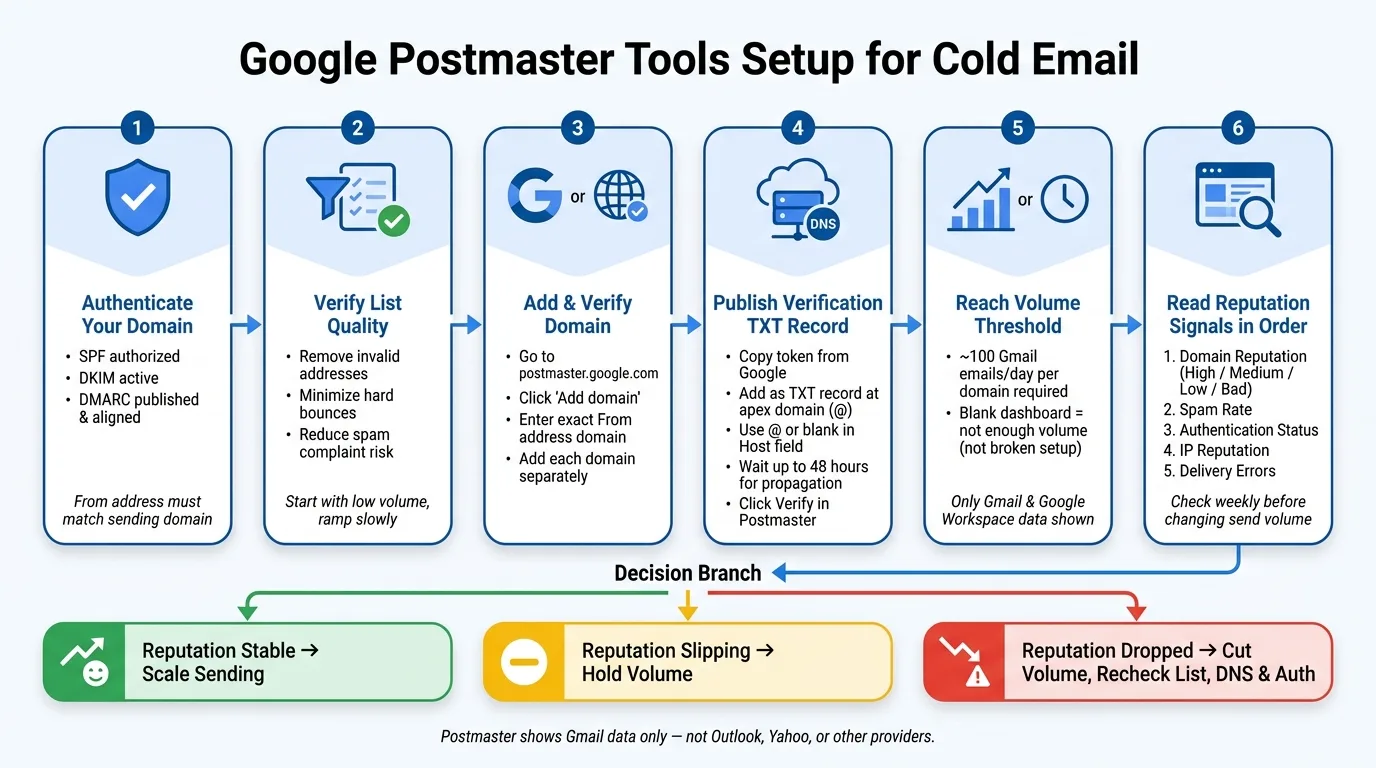
If Google Postmaster Tools is blank, that usually does not mean your setup is broken. In most cases, it means Gmail has not seen enough mail yet. For many senders, data starts to appear only after about 100 Gmail messages per day per domain.
If I were setting this up for cold email, I'd focus on four things first:
- SPF, DKIM, and DMARC must be live and aligned
- The sending domain should match the From address
- The list should be clean to limit bounces and spam complaints
- Each domain should be verified in Postmaster with a DNS TXT record
I'd also keep one thing in mind: Postmaster only shows Gmail and Google Workspace data. It does not show what Outlook, Yahoo, or other inbox providers think about my mail.
Once data appears, I'd watch these signals first:
- Domain reputation: High, Medium, Low, or Bad
- Spam rate
- Authentication status
- IP reputation
- Delivery errors
The main takeaway is simple: set up the domain right, send enough Gmail volume to trigger reporting, and check reputation before scaling. If reputation drops, I'd cut volume, review list quality, and inspect DNS and mailbox setup right away.
This guide walks through that setup and the core checks I'd use to keep Gmail placement steady.
How to Use Google Postmaster Tools to Improve Email Deliverability
Prepare Your Sending Domain Before Setup
Before you set anything up, check three basics first:
- A Google account
- An active sending domain that matches your From address
- Working SPF, DKIM, and DMARC
These checks help you avoid false reputation signals before Gmail starts scoring your domain. Once those pieces are in place, add the domain to Postmaster and publish the verification TXT record.
Check SPF, DKIM, and DMARC first
Make sure SPF authorizes your sending provider, DKIM signing is active, and DMARC is published and aligned with SPF and DKIM.
Most Postmaster authentication failures come down to DNS issues or mailbox setup problems. It's usually not some deep mystery. More often, it's a bad record, a missing key, or a mismatch between the domain you send from and the one your mail setup uses.
Verify list quality and bounce risk before sending
Hard bounces and spam complaints damage domain reputation fast. That's why it makes sense to verify your list before sending and keep volume low at the start, then ramp slowly on new domains.
This gives Gmail fewer bad signals to log early on. If you hit invalid addresses right away or trigger complaints out of the gate, that damage can show up before you've had a fair shot to build a clean record.
How isolated sending infrastructure affects Postmaster data
Your sending infrastructure has a direct effect on what you see in Postmaster. Clean Postmaster data only helps if it reflects your own mail flow.
Shared infrastructure can muddy the picture. If multiple senders use the same setup, Postmaster signals may reflect behavior that isn't yours. Isolated IPs and mailboxes keep reputation tied to your sending patterns instead. With isolated infrastructure like OutreachFox, Postmaster reflects your own sending behavior, not a shared pool.
With the domain clean and isolated, the next step is verification in Postmaster.
Set Up and Verify a Domain in Google Postmaster Tools
Add your sending domain in Postmaster
Once SPF, DKIM, DMARC, and list quality are set, add your domain in Google Postmaster Tools. Go to postmaster.google.com and click Add domain.
Enter the exact domain used in your outbound From addresses. If you send from more than one domain, add each one on its own.
Publish the TXT verification record in DNS
After you add the domain, Google gives you a TXT verification token. Add that token as a TXT record in your DNS at the apex domain.
This is how Google confirms which domain it should score.
One small gotcha: some DNS providers automatically append the domain name. So don't enter the full domain in Host or Name if your provider does that. Use @ or leave the field blank instead. If you add the full domain anyway, you can end up with a doubled record.
DNS propagation may take a few minutes or as long as 48 hours. After it propagates, go back to Postmaster and click Verify.
Confirm verification and check domain status
When the check works, the status changes to Verified.
If it doesn't, the usual issues are pretty simple:
- DNS propagation hasn't finished
- The Host or Name value is wrong
- There's another TXT record causing a conflict
Repeat the same process for each domain.
After verification, give Gmail time to populate data before you change sending volume or decide how your reputation looks.
When Gmail Data Appears and How to Read It
Gmail volume thresholds and why new domains show no data
A verified domain doesn't show useful Gmail data right away. Google Postmaster Tools usually starts populating the dashboard only after you send about 100 Gmail emails per day, per domain.
So if you're working with a new domain and the charts are blank, that doesn't always mean something is wrong. It can simply mean you haven't hit the volume threshold yet. The domain may be set up fine, but Postmaster still has too little Gmail traffic to report on.
Once data starts showing up, don't fixate on volume first. Start with reputation.
Read domain reputation, spam rate, and authentication charts
The best reading order is simple:
- Domain reputation: High, Medium, Low, or Bad
- Spam rate
- Authentication
- IP reputation
Domain reputation should be your first stop. It gives you the clearest first read on account health. After that, check spam rate and authentication to figure out why performance looks the way it does.
If reputation drops, look at IP reputation and delivery errors next. That's where you can sort out whether the problem comes from the sender, the mail flow, or the campaign itself.
When to use IP reputation and delivery error data
Use IP reputation and delivery error data, when it's available, to confirm where the issue sits:
- Domain-level
- IP-level
- Delivery failure
Once those charts populate, they help you make a clean call: scale, pause, or fix setup issues.
A good habit is to review these charts weekly before changing sending volume. That keeps you from making knee-jerk moves based on partial data.
Use Postmaster Data to Run Safer Cold Email Campaigns
A simple weekly monitoring workflow
Once Postmaster starts showing data, use it as a weekly control check for cold email sending. During domain ramp-up, or right after big campaign changes, check it more often.
Let reputation changes guide your next move: scale, hold, or pause. Then compare those signals with send volume and bounce rate in your outreach stack. Real-time mailbox and campaign metrics make that check much faster.
If reputation starts to slip, stop treating it like a watch-and-wait moment. Move to volume control right away.
What to do when sender reputation drops
Cut daily send volume immediately. Then treat the drop as a sign that something is off with your infrastructure or targeting.
Go back and recheck:
- list quality
- authentication
- any recent changes in your campaign setup
Keep volume low until the signals stabilize.
Conclusion: Core setup and monitoring steps to keep
Keep monitoring domain reputation and spam rate. Treat any reputation issue as an infrastructure or targeting problem.
Frequently asked questions
Why is Google Postmaster Tools showing no data even though I verified my domain?+
A blank Postmaster dashboard usually means Gmail hasn't seen enough mail volume yet, not that your setup is broken. Google Postmaster Tools typically starts displaying data only after you send about 100 Gmail messages per day per domain. For new domains, this is normal and doesn't indicate a configuration problem.
What DNS records must be configured before adding a domain to Google Postmaster Tools?+
Before adding your domain to Postmaster, you need SPF, DKIM, and DMARC records live and properly aligned. SPF must authorize your sending provider, DKIM signing must be active, and DMARC must be published and aligned with both SPF and DKIM. These records help avoid false reputation signals before Gmail starts scoring your domain.
Does Google Postmaster Tools show deliverability data for Outlook and Yahoo?+
No, Google Postmaster Tools only shows data from Gmail and Google Workspace recipients. It does not provide any information about what Outlook, Yahoo, or other inbox providers think about your mail. You'll need separate tools or data sources to monitor reputation with those providers.
What is the most important metric to check first in Google Postmaster Tools?+
Domain reputation is the most important metric to check first, as it gives the clearest initial read on account health. After checking domain reputation (High, Medium, Low, or Bad), review spam rate and authentication status to understand why performance looks the way it does.
What should I do immediately if my domain reputation drops in Postmaster?+
Cut your daily send volume immediately when reputation drops. Then recheck list quality, authentication records, and any recent campaign setup changes. Keep volume low until the reputation signals stabilize, and treat the drop as a sign that something is wrong with your infrastructure or targeting.
Why does the TXT verification record sometimes fail even when entered correctly?+
Some DNS providers automatically append the domain name to DNS records. If you enter the full domain in the Host or Name field when your provider does this, you'll end up with a doubled record that fails verification. Use '@' or leave the field blank instead, and allow up to 48 hours for DNS propagation.
How does shared sending infrastructure affect Google Postmaster Tools data?+
Shared infrastructure can muddy Postmaster data because the reputation signals may reflect behavior from multiple senders, not just yours. Isolated IPs and mailboxes keep reputation tied to your own sending patterns instead of a shared pool, giving you cleaner and more actionable Postmaster data.